> ## Documentation Index
> Fetch the complete documentation index at: https://docs.gumstack.com/llms.txt
> Use this file to discover all available pages before exploring further.
# Using Servers Externally
> Connect Gumstack MCP servers to Cursor, Claude, and any MCP-compatible client
Gumstack MCP servers aren't limited to Gumloop. Every deployed server exposes a standard MCP endpoint that works with any MCP-compatible client: Cursor, Claude Desktop, Windsurf, and more.
The key benefit: **every tool call is tracked back in Gumstack**, regardless of where it originates. Your IT team gets the same [activity logging](/platform/activity), [RBAC enforcement](/platform/permission-groups), and analytics whether the call comes from a Gumloop agent or a developer's IDE.
Users connecting from external clients must have a **Gumloop account** and be part of your organization. Gumstack authenticates external connections via an OAuth flow tied to the user's Gumloop identity. There is no anonymous or token-only access.
## Getting your server URL
Every deployed server has a public MCP Server URL. You can find it in two places:
1. **Server detail header**: Click **Copy Server URL** on any [internal MCP server](/platform/internal-servers)
2. **Overview tab**: The URL is displayed under the MCP Server URL section
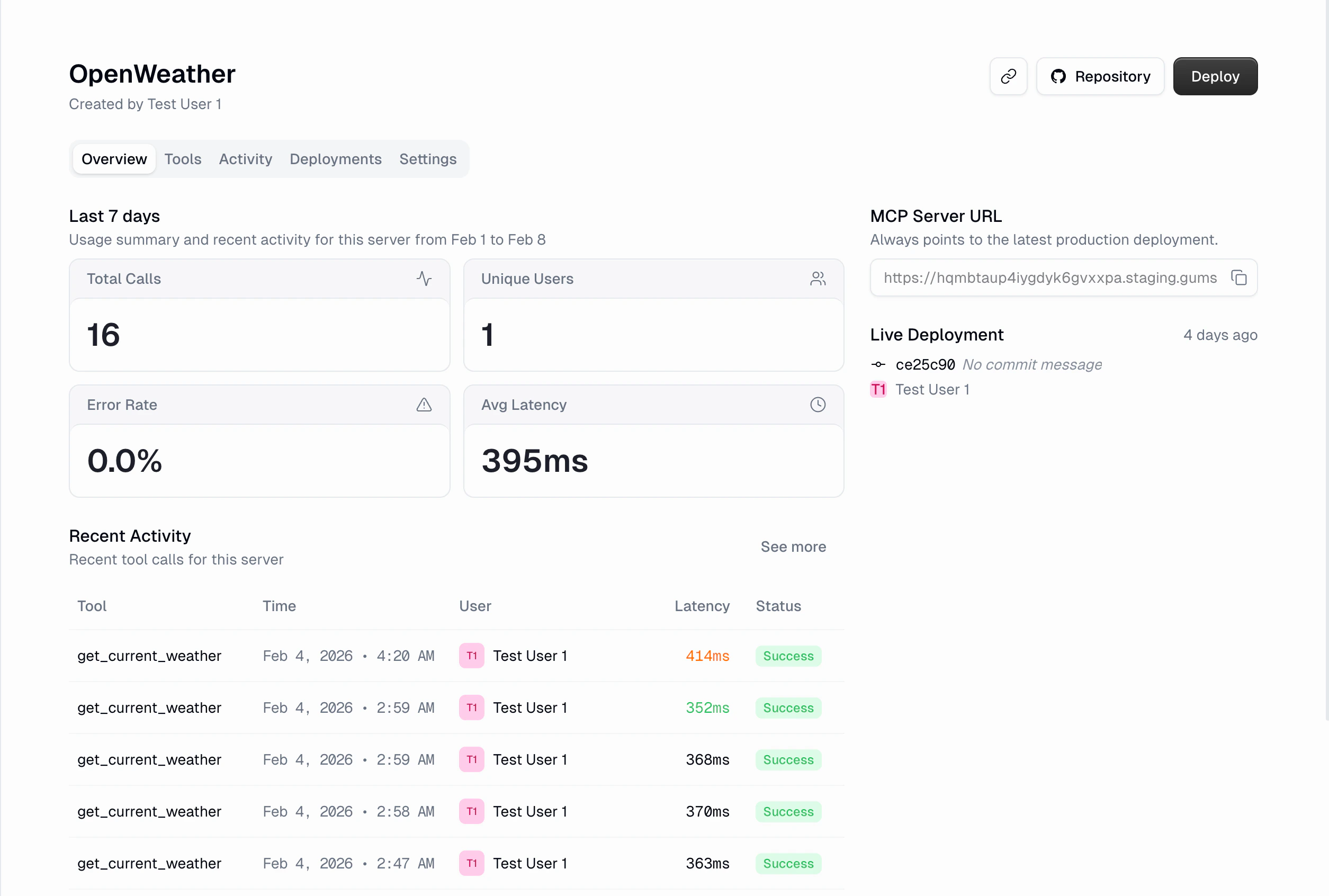 Copy the URL directly from the dashboard. This is what you'll paste into any MCP client configuration.
## Authentication
When an external MCP client connects to a Gumstack server, it goes through a standard **OAuth 2.0** flow:
The MCP client (Cursor, Claude, etc.) discovers Gumstack's OAuth endpoints automatically via the `/.well-known/oauth-authorization-server` discovery URL. No manual configuration needed.
The client redirects the user to Gumloop's login and consent page in the browser. The user signs in with their **Gumloop account** and approves access.
After approval, the client receives an OAuth access token (valid for 1 hour) and a refresh token (valid for 6 months). The client handles token refresh automatically.
Every subsequent MCP request includes the token. The [GumstackHost](/reference/gumstack-host) validates it on every call, identifying the user and their [permission group](/platform/permission-groups).
For MCP clients that support OAuth discovery, this flow happens automatically when you add the server URL. For clients that require manual token configuration, you can pass a bearer token in the `Authorization` header.
If using manual token configuration, never commit tokens to version control. Use environment variables or a secrets manager. Each developer should use their own token.
## Connecting from Cursor
Add the server to your Cursor MCP configuration file (`.cursor/mcp.json` in your project root, or `~/.cursor/mcp.json` for global access):
```json theme={"dark"}
{
"mcpServers": {
"my-gumstack-server": {
"url": ""
}
}
}
```
Cursor supports OAuth discovery, so it will automatically prompt you to log in to Gumloop the first time you connect. After authorizing, your server's tools appear in the agent's tool list.
## Connecting from Claude Desktop
Edit the Claude Desktop config file:
Open `~/Library/Application Support/Claude/claude_desktop_config.json`:
```json theme={"dark"}
{
"mcpServers": {
"my-gumstack-server": {
"url": ""
}
}
}
```
Open `%APPDATA%\Claude\claude_desktop_config.json`:
```json theme={"dark"}
{
"mcpServers": {
"my-gumstack-server": {
"url": ""
}
}
}
```
Restart Claude Desktop after saving. You'll be prompted to authorize via Gumloop on first use.
## Connecting from other MCP clients
Any client that supports **SSE** or **Streamable HTTP** transport can connect to a Gumstack server. The setup is the same:
1. Set the **server URL** to your Gumstack MCP Server URL (copied from the dashboard)
2. If the client supports OAuth discovery, it will handle authentication automatically
3. If not, include an **Authorization header** with a valid bearer token
Gumstack servers support both **SSE** (stateful streaming) and **Streamable HTTP** (stateless) transports. Most MCP clients auto-negotiate the transport.
## What works across all clients
Because all the infrastructure is handled server-side by [GumstackHost](/reference/gumstack-host), every feature works identically regardless of which client makes the call:
| Feature | How it works |
| --------------------------------------------------- | ---------------------------------------------------------------------------------------- |
| **[Activity logging](/platform/activity)** | Every tool call is logged with full inputs, outputs, latency, and status |
| **[RBAC enforcement](/platform/permission-groups)** | Permission groups and tool access restrictions are checked before every tool call |
| **[User tracking](/platform/users)** | Each call is attributed to the authenticated Gumloop user |
| **Token validation** | Invalid or expired tokens are rejected at the server level |
| **Error tracking** | Failed calls, permission denials, and timeouts are captured with detailed error messages |
External client calls show up in the [Activity dashboard](/platform/activity) just like Gumloop agent calls. You can filter by user to see all activity from a specific person, regardless of which client they used.
## Centralized governance
This is one of the core selling points of Gumstack. When you deploy an MCP server through Gumstack, it doesn't matter where it's used. The server itself handles authentication, access control, and logging, so your IT team keeps full visibility and control.
### One dashboard for everything
Every tool call, whether it comes from a [Gumloop agent](/building/using-in-gumloop), a developer's Cursor session, or Claude Desktop, flows into the same [Activity & Analytics](/platform/activity) dashboard. You see inputs, outputs, latency, errors, and which user made each call, all in one place.
### Instant access control
When an admin changes [permission groups](/platform/permission-groups) or [tool access](/platform/internal-servers) in Gumstack, it takes effect immediately across all clients. Restrict a tool, and no one can call it from any client. Move a user to a different group, and their access updates on the next request.
### Single kill switch
[Disabling a server](/platform/internal-servers) in Gumstack cuts off access from every client at once. No need to revoke tokens individually or update client configurations. The server rejects all requests until it's re-enabled.
### Complete audit trails
Because every call is tied to a Gumloop user identity, you get per-user audit trails that span all clients. The [Users](/platform/users) page shows each person's complete activity history, regardless of whether they used Gumloop, Cursor, or Claude.
### Credentials stay centralized
For servers that require additional credentials (OAuth or API Key), users manage everything from their [Gumstack credentials page](https://www.gumloop.com/settings/profile/credentials). The credentials are stored securely in Gumloop and used server-side. External clients never see or handle service credentials directly.
## Related docs
Connect servers to Gumloop agents
Monitor tool usage across all clients
Control who can access which tools
Server-side infrastructure details
Copy the URL directly from the dashboard. This is what you'll paste into any MCP client configuration.
## Authentication
When an external MCP client connects to a Gumstack server, it goes through a standard **OAuth 2.0** flow:
The MCP client (Cursor, Claude, etc.) discovers Gumstack's OAuth endpoints automatically via the `/.well-known/oauth-authorization-server` discovery URL. No manual configuration needed.
The client redirects the user to Gumloop's login and consent page in the browser. The user signs in with their **Gumloop account** and approves access.
After approval, the client receives an OAuth access token (valid for 1 hour) and a refresh token (valid for 6 months). The client handles token refresh automatically.
Every subsequent MCP request includes the token. The [GumstackHost](/reference/gumstack-host) validates it on every call, identifying the user and their [permission group](/platform/permission-groups).
For MCP clients that support OAuth discovery, this flow happens automatically when you add the server URL. For clients that require manual token configuration, you can pass a bearer token in the `Authorization` header.
If using manual token configuration, never commit tokens to version control. Use environment variables or a secrets manager. Each developer should use their own token.
## Connecting from Cursor
Add the server to your Cursor MCP configuration file (`.cursor/mcp.json` in your project root, or `~/.cursor/mcp.json` for global access):
```json theme={"dark"}
{
"mcpServers": {
"my-gumstack-server": {
"url": ""
}
}
}
```
Cursor supports OAuth discovery, so it will automatically prompt you to log in to Gumloop the first time you connect. After authorizing, your server's tools appear in the agent's tool list.
## Connecting from Claude Desktop
Edit the Claude Desktop config file:
Open `~/Library/Application Support/Claude/claude_desktop_config.json`:
```json theme={"dark"}
{
"mcpServers": {
"my-gumstack-server": {
"url": ""
}
}
}
```
Open `%APPDATA%\Claude\claude_desktop_config.json`:
```json theme={"dark"}
{
"mcpServers": {
"my-gumstack-server": {
"url": ""
}
}
}
```
Restart Claude Desktop after saving. You'll be prompted to authorize via Gumloop on first use.
## Connecting from other MCP clients
Any client that supports **SSE** or **Streamable HTTP** transport can connect to a Gumstack server. The setup is the same:
1. Set the **server URL** to your Gumstack MCP Server URL (copied from the dashboard)
2. If the client supports OAuth discovery, it will handle authentication automatically
3. If not, include an **Authorization header** with a valid bearer token
Gumstack servers support both **SSE** (stateful streaming) and **Streamable HTTP** (stateless) transports. Most MCP clients auto-negotiate the transport.
## What works across all clients
Because all the infrastructure is handled server-side by [GumstackHost](/reference/gumstack-host), every feature works identically regardless of which client makes the call:
| Feature | How it works |
| --------------------------------------------------- | ---------------------------------------------------------------------------------------- |
| **[Activity logging](/platform/activity)** | Every tool call is logged with full inputs, outputs, latency, and status |
| **[RBAC enforcement](/platform/permission-groups)** | Permission groups and tool access restrictions are checked before every tool call |
| **[User tracking](/platform/users)** | Each call is attributed to the authenticated Gumloop user |
| **Token validation** | Invalid or expired tokens are rejected at the server level |
| **Error tracking** | Failed calls, permission denials, and timeouts are captured with detailed error messages |
External client calls show up in the [Activity dashboard](/platform/activity) just like Gumloop agent calls. You can filter by user to see all activity from a specific person, regardless of which client they used.
## Centralized governance
This is one of the core selling points of Gumstack. When you deploy an MCP server through Gumstack, it doesn't matter where it's used. The server itself handles authentication, access control, and logging, so your IT team keeps full visibility and control.
### One dashboard for everything
Every tool call, whether it comes from a [Gumloop agent](/building/using-in-gumloop), a developer's Cursor session, or Claude Desktop, flows into the same [Activity & Analytics](/platform/activity) dashboard. You see inputs, outputs, latency, errors, and which user made each call, all in one place.
### Instant access control
When an admin changes [permission groups](/platform/permission-groups) or [tool access](/platform/internal-servers) in Gumstack, it takes effect immediately across all clients. Restrict a tool, and no one can call it from any client. Move a user to a different group, and their access updates on the next request.
### Single kill switch
[Disabling a server](/platform/internal-servers) in Gumstack cuts off access from every client at once. No need to revoke tokens individually or update client configurations. The server rejects all requests until it's re-enabled.
### Complete audit trails
Because every call is tied to a Gumloop user identity, you get per-user audit trails that span all clients. The [Users](/platform/users) page shows each person's complete activity history, regardless of whether they used Gumloop, Cursor, or Claude.
### Credentials stay centralized
For servers that require additional credentials (OAuth or API Key), users manage everything from their [Gumstack credentials page](https://www.gumloop.com/settings/profile/credentials). The credentials are stored securely in Gumloop and used server-side. External clients never see or handle service credentials directly.
## Related docs
Connect servers to Gumloop agents
Monitor tool usage across all clients
Control who can access which tools
Server-side infrastructure details