> ## Documentation Index
> Fetch the complete documentation index at: https://docs.gumstack.com/llms.txt
> Use this file to discover all available pages before exploring further.
# Using Gumstack Servers in Gumloop
> How end users connect to and use your Gumstack MCP servers in Gumloop agents
Once a Gumstack admin deploys an internal MCP server, it becomes available to end users in [Gumloop agents](https://docs.gumloop.com). This page covers the full flow: connecting to Gumstack, selecting servers, authenticating, managing credentials, and how admin configurations affect the end-user experience.
This page focuses on **internal Gumstack MCP servers** in Gumloop agents. guMCP (pre-built) servers have their own connection flow and are not covered here.
## Authentication
Using a Gumstack server requires two things:
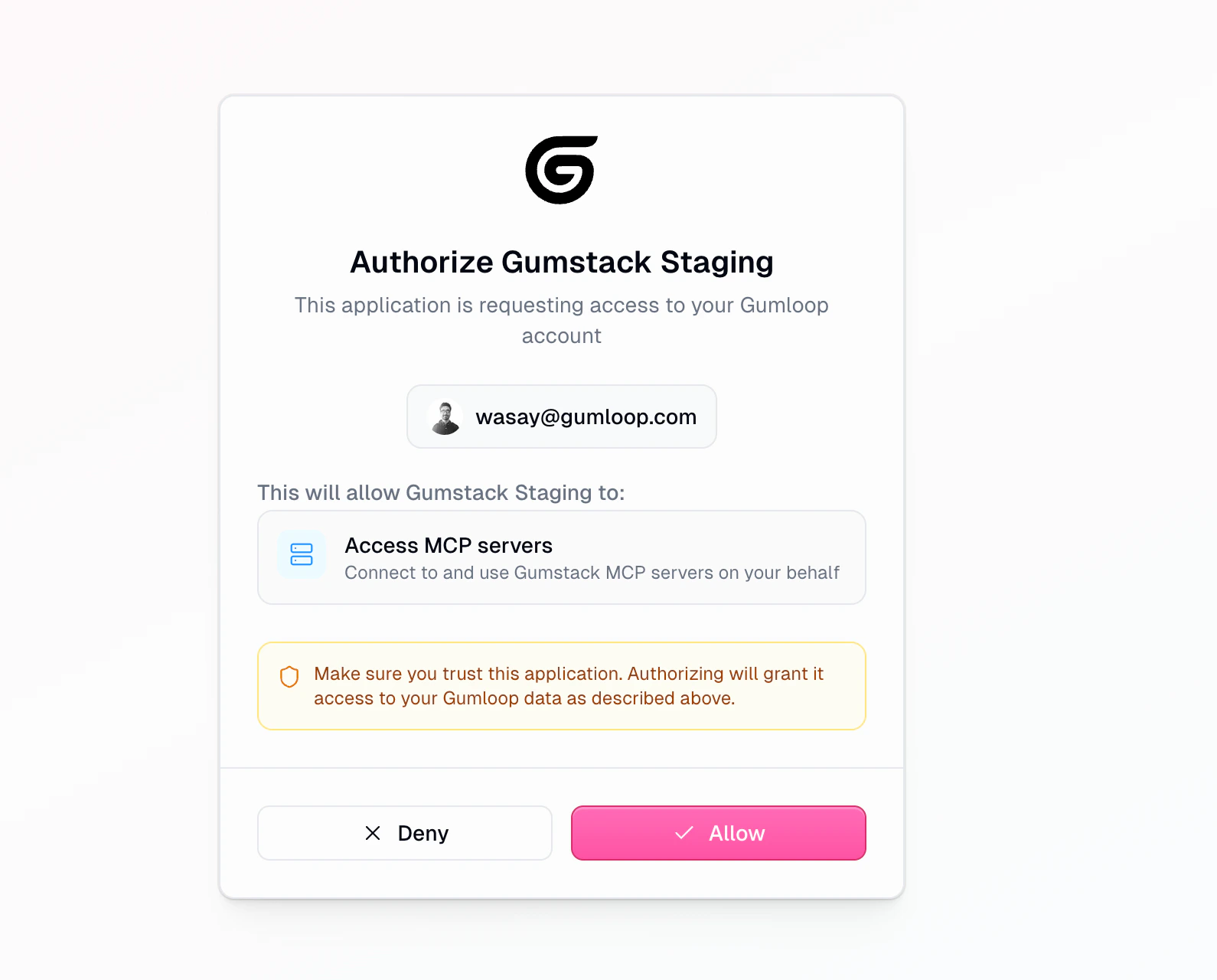
1. **Gumstack access**: A one-time authorization that links the user's Gumloop account to Gumstack. This is required for all Gumstack servers.
2. **Server-specific credentials**: Depends on the server's auth method. OAuth servers need a per-server OAuth flow. API Key servers need user-provided keys. No Auth servers skip this entirely.
## Connecting to Gumstack
In a Gumloop agent, go to the **Tools** section and click **Connect an app (MCP)**. The dialog has two tabs: **Gumloop** (managed integrations) and **Custom** (external MCP server URLs).
Gumstack appears as a collapsible section within the **Gumloop** tab.
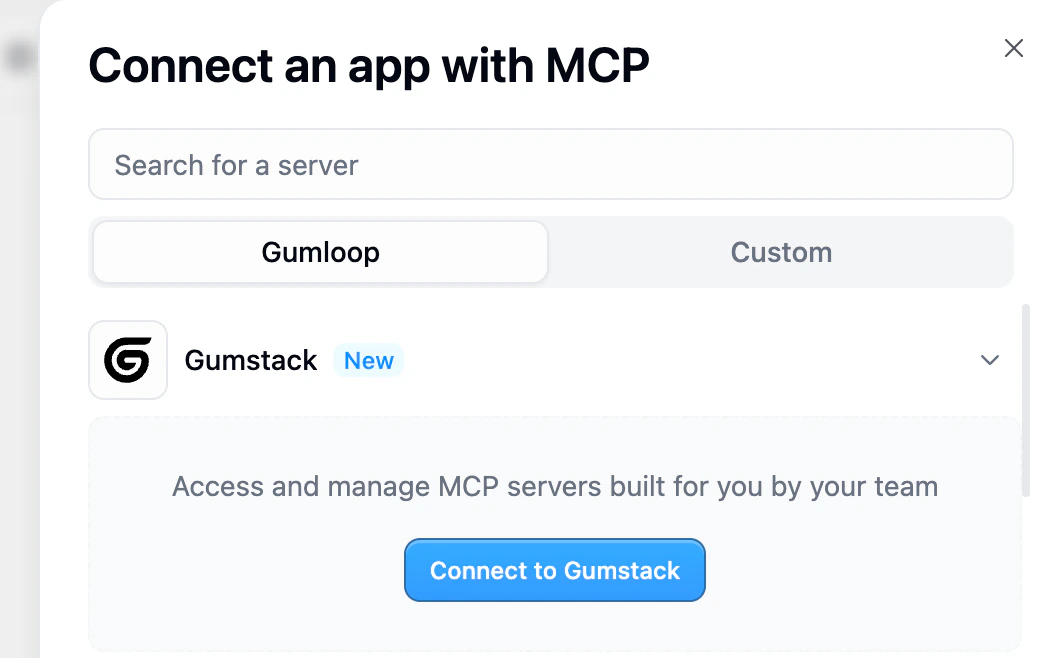
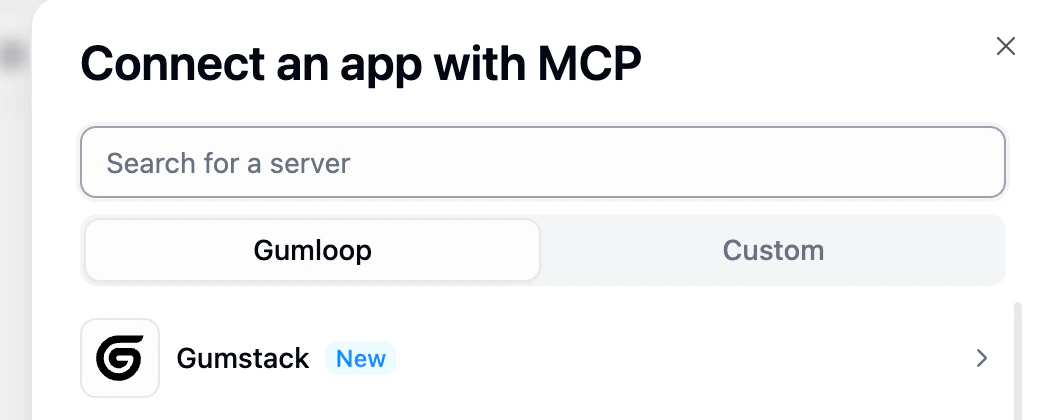 Click **Gumstack** to expand it, then click **Connect to Gumstack**.
 This opens an authorization screen. Click **Allow** to grant Gumstack permission to connect to MCP servers on your behalf. This is a one-time step. Returning users go straight to the server list.
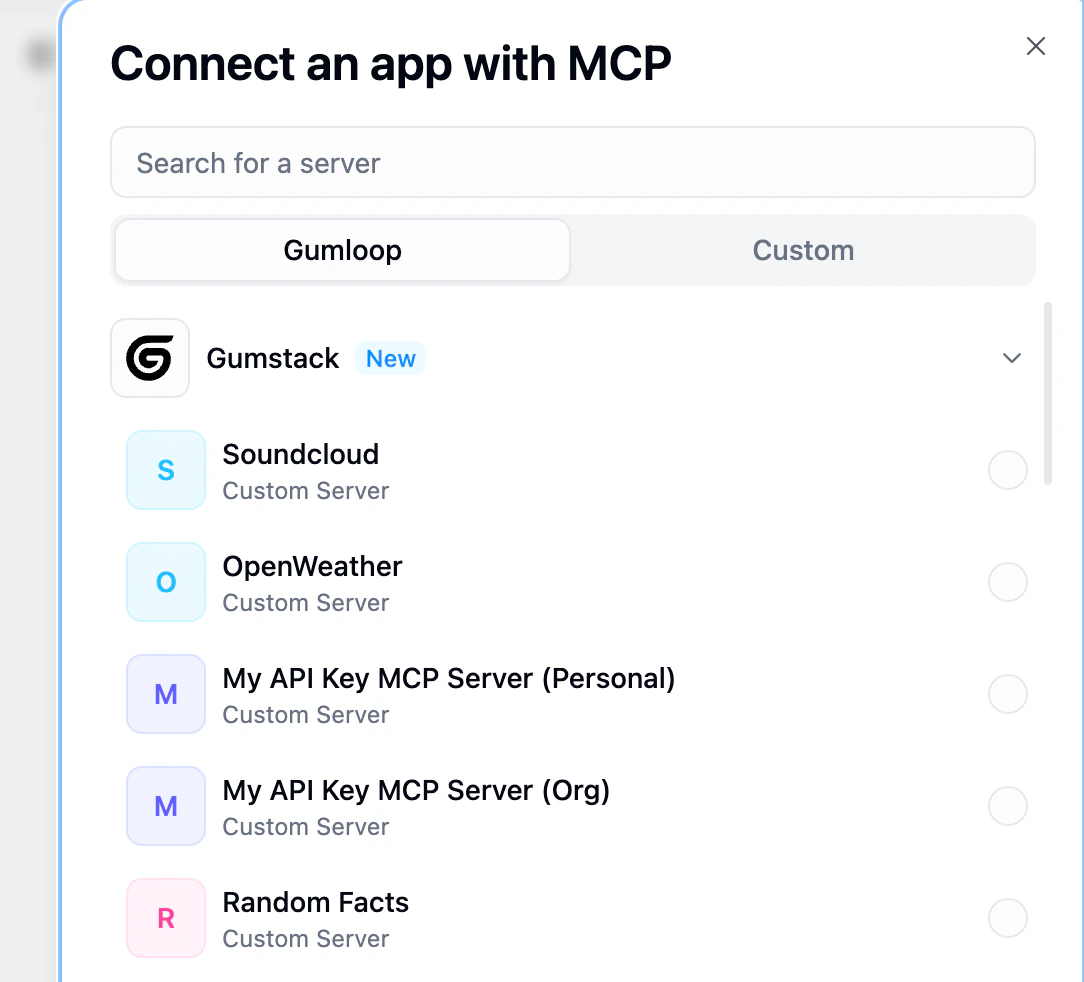
 After authorization, you'll see all available Gumstack servers. Disabled servers, fully restricted servers, and servers you've already added are filtered out.
Select the servers you want using the checkboxes. You can add **multiple servers** at once.
After authorization, you'll see all available Gumstack servers. Disabled servers, fully restricted servers, and servers you've already added are filtered out.
Select the servers you want using the checkboxes. You can add **multiple servers** at once.
 ## Server-specific credentials
After adding a server, what happens next depends on its **authentication method**.
No additional credentials needed. The server is immediately ready to use after connecting to Gumstack.
These servers don't appear on the credentials page since there's nothing to configure.
**Best for**: Internal services, shared utilities, or tools where access is managed entirely by permission groups.
The server appears in the agent's Tools section with a **Connect** button. Clicking it opens the credentials page where the user enters their API key or credentials.
Once saved, the server is ready. Credentials are securely stored and reused.
**Best for**: Third-party APIs where each user has their own key (e.g., OpenAI, Twilio, Stripe).
The server appears with a **Connect** button, similar to API Key servers. Clicking it redirects through an **OAuth flow specific to that service** (e.g., Soundcloud, Slack, GitHub). This is separate from the initial Gumstack authorization.
Once authorized, the token is stored. Users can **Reauthenticate** anytime if their token expires.
**Best for**: Third-party services that support OAuth (e.g., Soundcloud, Slack, GitHub, Linear).
## The agent Tools section
Once servers are connected, they appear in the agent's **Tools** section.
## Server-specific credentials
After adding a server, what happens next depends on its **authentication method**.
No additional credentials needed. The server is immediately ready to use after connecting to Gumstack.
These servers don't appear on the credentials page since there's nothing to configure.
**Best for**: Internal services, shared utilities, or tools where access is managed entirely by permission groups.
The server appears in the agent's Tools section with a **Connect** button. Clicking it opens the credentials page where the user enters their API key or credentials.
Once saved, the server is ready. Credentials are securely stored and reused.
**Best for**: Third-party APIs where each user has their own key (e.g., OpenAI, Twilio, Stripe).
The server appears with a **Connect** button, similar to API Key servers. Clicking it redirects through an **OAuth flow specific to that service** (e.g., Soundcloud, Slack, GitHub). This is separate from the initial Gumstack authorization.
Once authorized, the token is stored. Users can **Reauthenticate** anytime if their token expires.
**Best for**: Third-party services that support OAuth (e.g., Soundcloud, Slack, GitHub, Linear).
## The agent Tools section
Once servers are connected, they appear in the agent's **Tools** section.
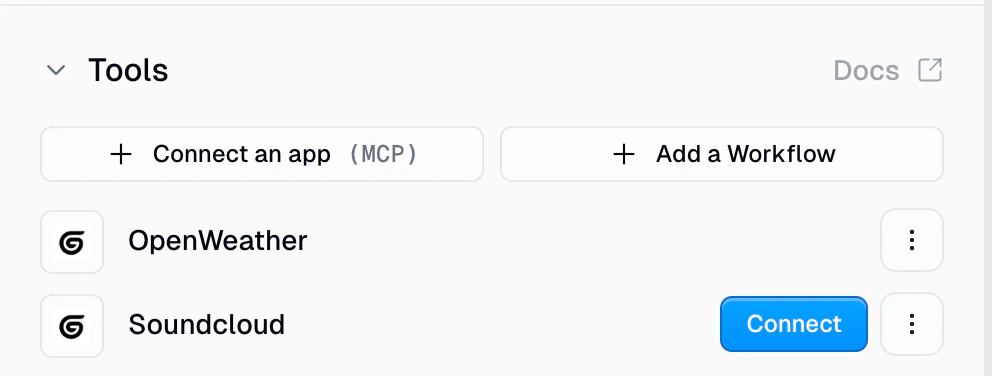 * Fully connected servers show their name and the Gumstack icon
* Servers needing credentials show a **Connect** button
* Each server has a three-dot menu for switching between **Personal** and **Workspace** credentials
### Tool restrictions
When an admin restricts specific tools via [permission groups](/platform/permission-groups), those tools are **greyed out** in the agent with a **"Restricted"** label and tooltip: *"{tool_name} is restricted by your admin."*
Restricted tools can't be toggled on and don't count toward the selectable tool count. If called at runtime, the call is blocked with `permission_denied` status.
## Managing credentials
Users manage Gumstack credentials at **Settings > Profile > [Credentials](https://www.gumloop.com/settings/profile/credentials)** under the **Gumstack** tab.
* Fully connected servers show their name and the Gumstack icon
* Servers needing credentials show a **Connect** button
* Each server has a three-dot menu for switching between **Personal** and **Workspace** credentials
### Tool restrictions
When an admin restricts specific tools via [permission groups](/platform/permission-groups), those tools are **greyed out** in the agent with a **"Restricted"** label and tooltip: *"{tool_name} is restricted by your admin."*
Restricted tools can't be toggled on and don't count toward the selectable tool count. If called at runtime, the call is blocked with `permission_denied` status.
## Managing credentials
Users manage Gumstack credentials at **Settings > Profile > [Credentials](https://www.gumloop.com/settings/profile/credentials)** under the **Gumstack** tab.
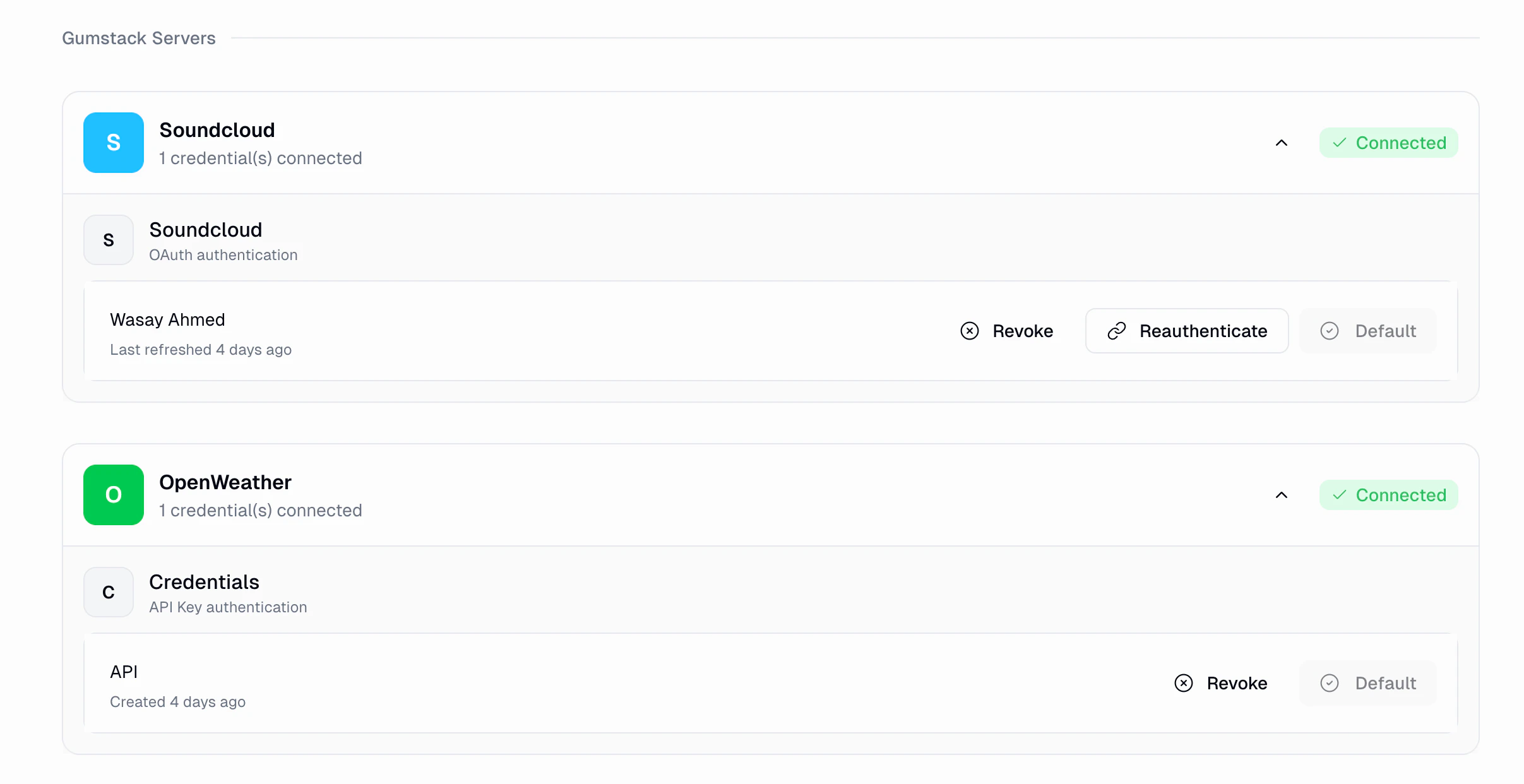 Each server card shows its name, connection status, and auth type. Expand a card to see credentials organized by provider.
| Action | Description | Available for |
| ------------------ | ------------------------------------------------------------------------ | ------------- |
| **Revoke** | Remove stored credentials. Tools using this credential will stop working | All types |
| **Reauthenticate** | Re-run the OAuth flow to refresh the token | OAuth only |
| **Set as Default** | Make this credential the default for this server | All types |
If a server stops working, try revoking and reauthenticating on this page. This resolves most token expiration issues.
## How admin settings affect end users
### Permission groups and tool access
| Admin action | End-user impact |
| --------------------------------------- | ---------------------------------------------------- |
| **Restrict some tools** | Server appears, but restricted tools are greyed out |
| **Revoke tool access after connection** | Calls to revoked tools fail with "Permission Denied" |
| **Move user to a different group** | Access changes immediately |
Blocked calls are logged with **Permission Denied** status in the Gumstack [Activity](/platform/activity) dashboard.
### Server states
| Server state | What happens in agents |
| ------------------------ | ------------------------------------------------------------------------------------------------------------------------------ |
| **Active** | Works normally |
| **Disabled** | Shows yellow "Disabled" badge. All tool calls fail. Can't be added to new agents. Re-enabling restores it without reconnecting |
| **Deleted** | Shows red "Deprecated" badge. Unusable |
| **Building / Deploying** | No interruption. Current deployment keeps serving requests |
### Environment variable changes
Environment variables are injected at deployment time. Changes **require a new deployment** to take effect.
## Activity logging
Every tool call made through a Gumstack server is automatically logged in the [Activity](/platform/activity) dashboard, regardless of auth type.
Each server card shows its name, connection status, and auth type. Expand a card to see credentials organized by provider.
| Action | Description | Available for |
| ------------------ | ------------------------------------------------------------------------ | ------------- |
| **Revoke** | Remove stored credentials. Tools using this credential will stop working | All types |
| **Reauthenticate** | Re-run the OAuth flow to refresh the token | OAuth only |
| **Set as Default** | Make this credential the default for this server | All types |
If a server stops working, try revoking and reauthenticating on this page. This resolves most token expiration issues.
## How admin settings affect end users
### Permission groups and tool access
| Admin action | End-user impact |
| --------------------------------------- | ---------------------------------------------------- |
| **Restrict some tools** | Server appears, but restricted tools are greyed out |
| **Revoke tool access after connection** | Calls to revoked tools fail with "Permission Denied" |
| **Move user to a different group** | Access changes immediately |
Blocked calls are logged with **Permission Denied** status in the Gumstack [Activity](/platform/activity) dashboard.
### Server states
| Server state | What happens in agents |
| ------------------------ | ------------------------------------------------------------------------------------------------------------------------------ |
| **Active** | Works normally |
| **Disabled** | Shows yellow "Disabled" badge. All tool calls fail. Can't be added to new agents. Re-enabling restores it without reconnecting |
| **Deleted** | Shows red "Deprecated" badge. Unusable |
| **Building / Deploying** | No interruption. Current deployment keeps serving requests |
### Environment variable changes
Environment variables are injected at deployment time. Changes **require a new deployment** to take effect.
## Activity logging
Every tool call made through a Gumstack server is automatically logged in the [Activity](/platform/activity) dashboard, regardless of auth type.
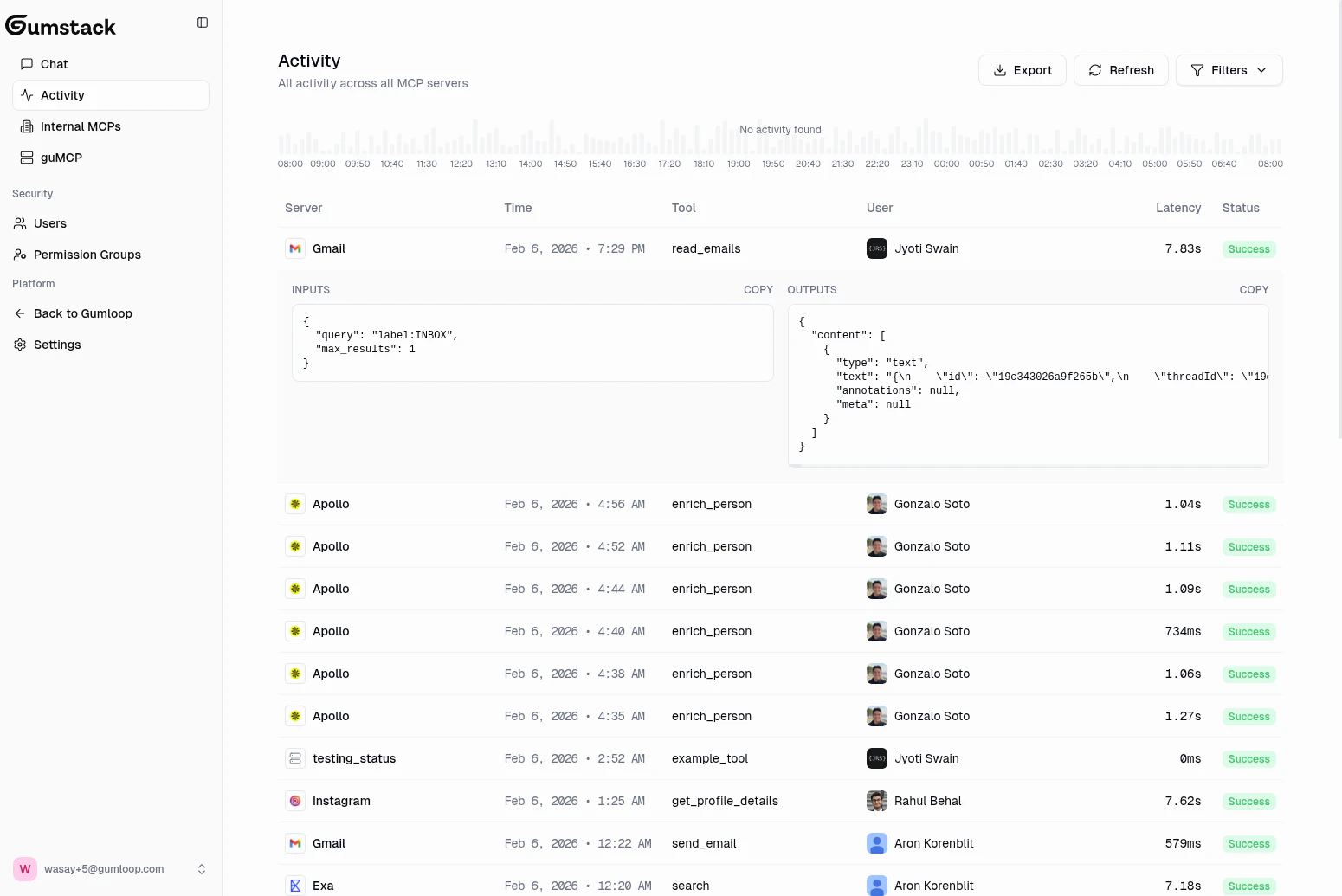 Each call captures: **server**, **tool**, **user**, **inputs** (full JSON), **outputs** (full JSON), **latency** (with percentile comparison), **status** (`success`, `error`, `permission_denied`, or `timeout`), and any **error or blocked reason**.
This data is visible in three places:
1. **[Global Activity](/platform/activity)**: All calls across all servers
2. **[Server detail](/platform/internal-servers) > Activity tab**: Calls for a specific server
3. **[User detail](/platform/users)**: All calls by a specific user
## End-to-end example
The IT admin creates an internal MCP server in Gumstack with OAuth authentication. The server exposes tools like `search_tracks` and `get_playlist`.
The admin grants the "Engineering" group access to both tools, but restricts the "Marketing" group to only `search_tracks`.
An engineer clicks **Connect an app (MCP)**, selects **Gumstack**, authorizes (first time only), and picks the server.
Since it's an OAuth server, the engineer clicks **Connect** in the Tools section and completes the OAuth flow.
The engineer can call both `search_tracks` and `get_playlist`. A marketing team member would see `get_playlist` greyed out with "Restricted".
Every call (successful, failed, or denied) appears in Gumstack's Activity dashboard with full details.
## Best practices
Configure [permission groups](/platform/permission-groups) and the [tool access matrix](/platform/internal-servers) before telling users about a new server. This prevents confusion from permission denied errors on first use.
Create a "Beta Testers" permission group and grant them access. Verify the full flow works before expanding to broader groups.
Check the [Activity](/platform/activity) dashboard for the first few days. Look for errors, high latency, or permission denials that suggest misconfiguration.
Use **No Auth** for internal utilities, **API Key** when each user has their own key, and **OAuth** for third-party integrations. OAuth provides the best user experience since token management is automatic.
## Related docs
Build and deploy your first server
Configure who can access which tools
Monitor tool usage in real-time
Connect to Cursor, Claude, and other MCP clients
Each call captures: **server**, **tool**, **user**, **inputs** (full JSON), **outputs** (full JSON), **latency** (with percentile comparison), **status** (`success`, `error`, `permission_denied`, or `timeout`), and any **error or blocked reason**.
This data is visible in three places:
1. **[Global Activity](/platform/activity)**: All calls across all servers
2. **[Server detail](/platform/internal-servers) > Activity tab**: Calls for a specific server
3. **[User detail](/platform/users)**: All calls by a specific user
## End-to-end example
The IT admin creates an internal MCP server in Gumstack with OAuth authentication. The server exposes tools like `search_tracks` and `get_playlist`.
The admin grants the "Engineering" group access to both tools, but restricts the "Marketing" group to only `search_tracks`.
An engineer clicks **Connect an app (MCP)**, selects **Gumstack**, authorizes (first time only), and picks the server.
Since it's an OAuth server, the engineer clicks **Connect** in the Tools section and completes the OAuth flow.
The engineer can call both `search_tracks` and `get_playlist`. A marketing team member would see `get_playlist` greyed out with "Restricted".
Every call (successful, failed, or denied) appears in Gumstack's Activity dashboard with full details.
## Best practices
Configure [permission groups](/platform/permission-groups) and the [tool access matrix](/platform/internal-servers) before telling users about a new server. This prevents confusion from permission denied errors on first use.
Create a "Beta Testers" permission group and grant them access. Verify the full flow works before expanding to broader groups.
Check the [Activity](/platform/activity) dashboard for the first few days. Look for errors, high latency, or permission denials that suggest misconfiguration.
Use **No Auth** for internal utilities, **API Key** when each user has their own key, and **OAuth** for third-party integrations. OAuth provides the best user experience since token management is automatic.
## Related docs
Build and deploy your first server
Configure who can access which tools
Monitor tool usage in real-time
Connect to Cursor, Claude, and other MCP clients