> ## Documentation Index
> Fetch the complete documentation index at: https://docs.gumstack.com/llms.txt
> Use this file to discover all available pages before exploring further.
# Troubleshooting
> Common deployment issues and how to fix them
## Build failures
### Missing config.yaml
```
Error: config.yaml not found
```
Create `config.yaml` in your project root with at least:
```yaml theme={"dark"}
name: "your-server"
tools: []
```
### Missing tool declaration
```
Tool 'my_tool' not found in config.yaml
```
Add the tool to `config.yaml`:
```yaml theme={"dark"}
tools:
- name: "my_tool"
description: "What it does"
```
### Dependency errors
```
Error: Could not find package 'some-package'
```
Add the package to `pyproject.toml`:
```bash theme={"dark"}
uv add some-package
git add pyproject.toml uv.lock
git commit -m "Add dependency"
git push
```
### Build timeout
Builds have a time limit. If your build times out:
1. Check for large dependencies
2. Ensure you're not downloading large files at build time
3. Contact support if the issue persists
## Runtime errors
### Tool blocked
```
Permission denied: Tool 'delete_all' is restricted for your permission group
```
Your organization admin has restricted this tool. Contact them to request access.
### Credentials not found
```
No credentials found for provider 'linear'
```
The user hasn't connected their account. For OAuth providers, they need to authorize via the Gumstack UI.
### Invalid token
```
401 Unauthorized: Invalid or expired token
```
The request token is invalid. This usually means:
* User's session expired
* Token was revoked
* Misconfigured MCP client
## Viewing logs
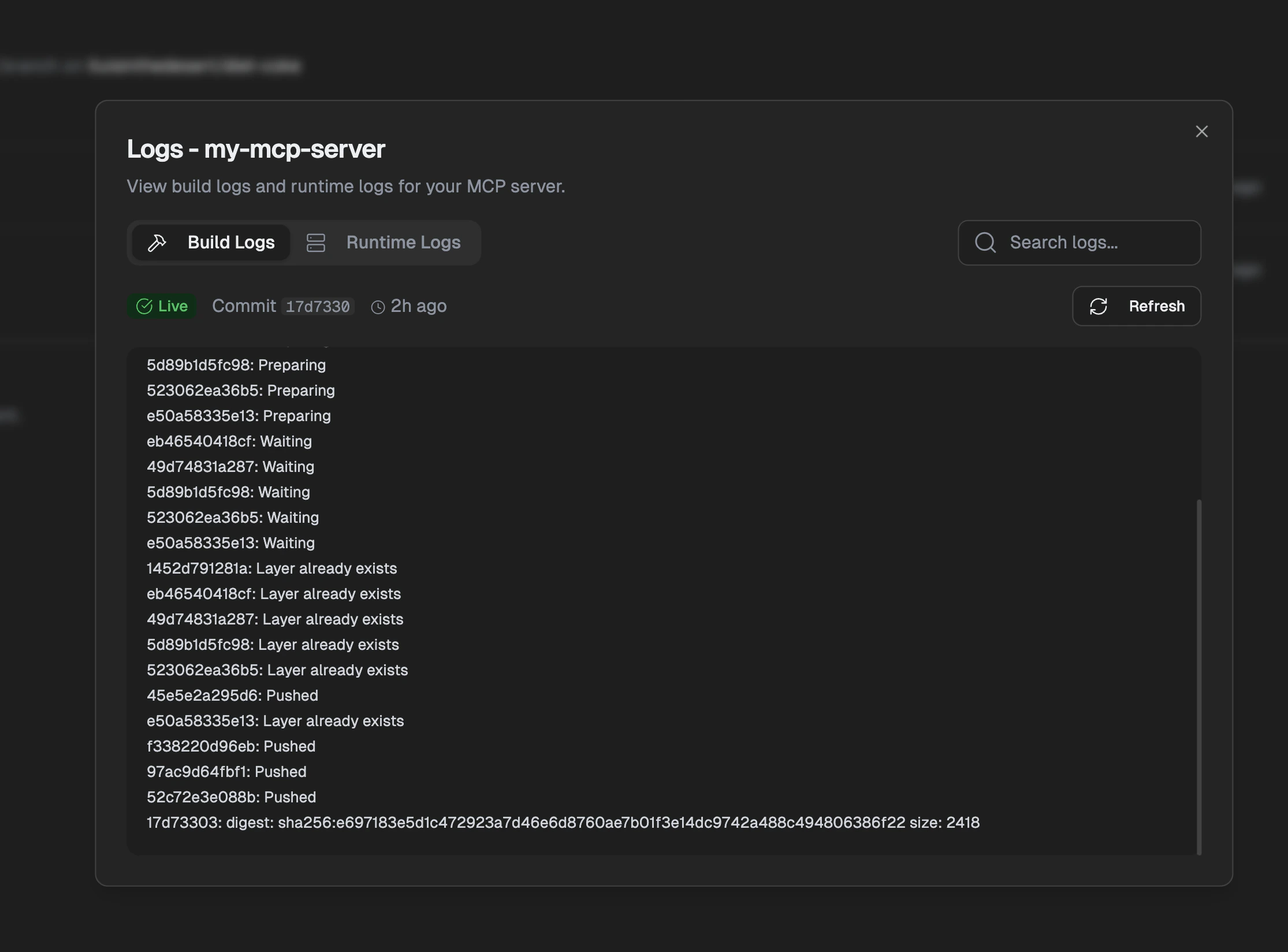
### Build logs
Go to **Deployments** tab, click on a deployment, then open **Logs > Build Logs**.
 ### Runtime logs
Go to **Deployments** tab, click **Logs > Runtime Logs**.
### Runtime logs
Go to **Deployments** tab, click **Logs > Runtime Logs**.
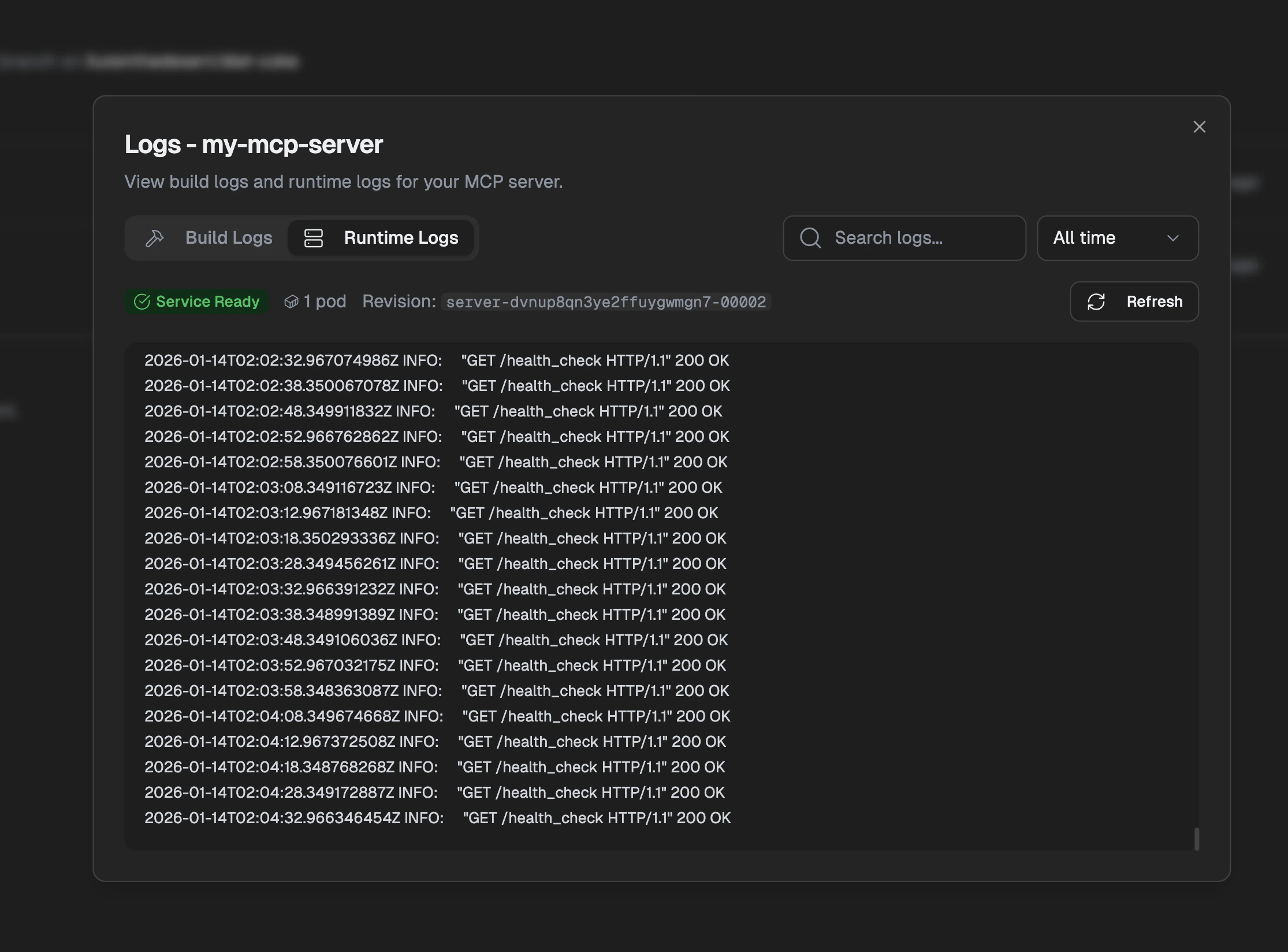 Use the time filter and search to find specific errors.
## Still stuck?
Contact support with:
* Server ID
* Deployment ID (if build issue)
* Error message
* Steps to reproduce
Use the time filter and search to find specific errors.
## Still stuck?
Contact support with:
* Server ID
* Deployment ID (if build issue)
* Error message
* Steps to reproduce