> ## Documentation Index
> Fetch the complete documentation index at: https://docs.gumstack.com/llms.txt
> Use this file to discover all available pages before exploring further.
# Internal MCP Servers
> Build, deploy, and manage your custom MCP servers
Internal MCP servers are custom servers your team builds and deploys through Gumstack. They connect to your own services and APIs, giving your organization custom AI tools tailored to your workflows.
 ## Server list
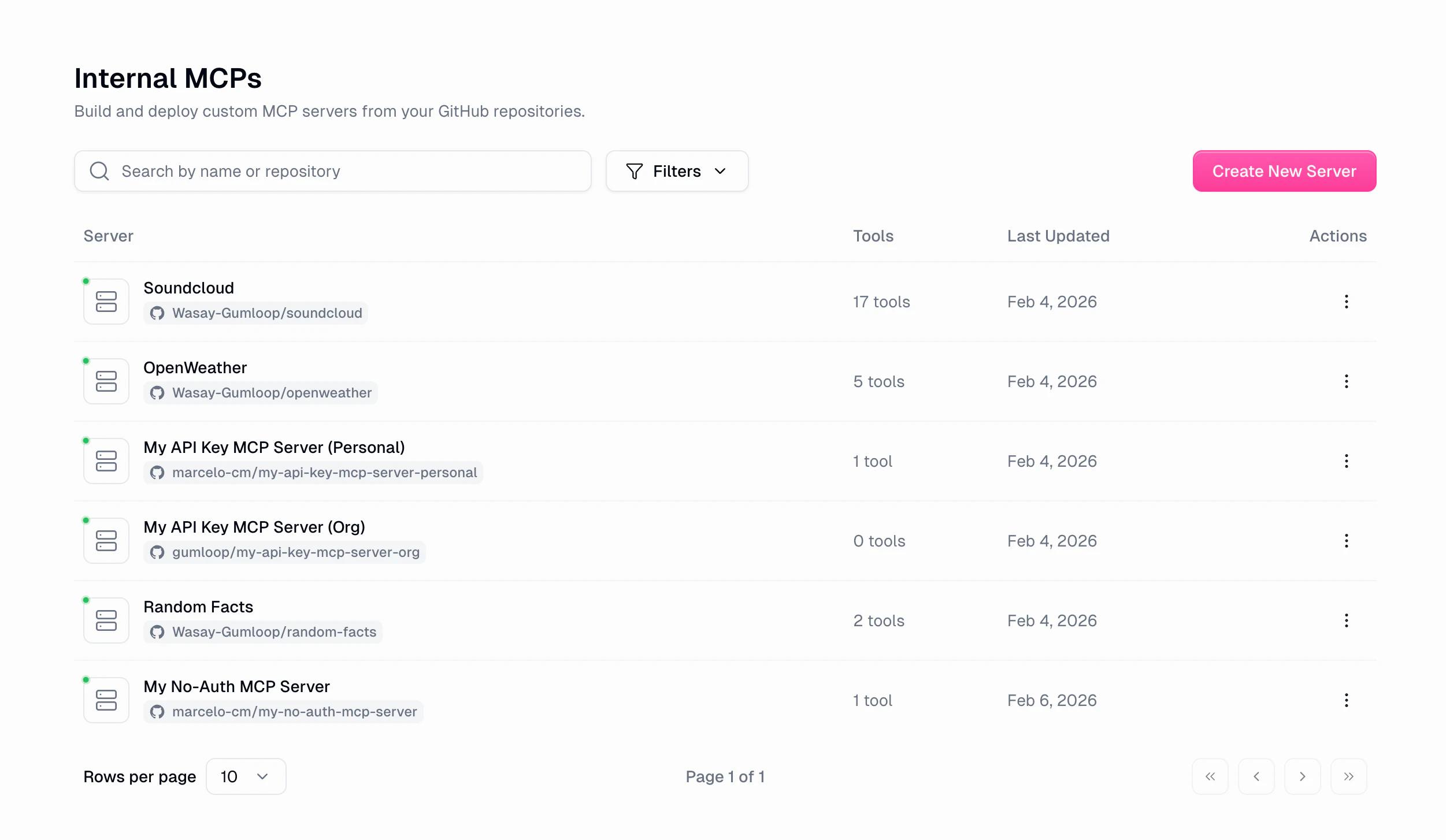
The Internal MCPs page shows all your custom servers in a table with status, creator, and last updated timestamp. Use **Search** to filter by name, toggle **Show Deactivated** to include disabled servers, or switch to **My Servers Only** to see just yours.
Click **Create New Server** to start building a new server. See the [Quickstart](/building/quickstart) for a full walkthrough.
## Server detail
Click any server to open its detail page with **5 tabs**: Overview, Tools, Activity, Deployments, and Settings.
The header shows the server name, creator, a **Copy Server URL** button, link to the **GitHub repository**, and a **Deploy** button for manual deployments.
If the GitHub App isn't installed or doesn't have access to the repo, you'll see a warning banner at the top.
### Overview tab
A quick snapshot of your server's health and recent activity.
## Server list
The Internal MCPs page shows all your custom servers in a table with status, creator, and last updated timestamp. Use **Search** to filter by name, toggle **Show Deactivated** to include disabled servers, or switch to **My Servers Only** to see just yours.
Click **Create New Server** to start building a new server. See the [Quickstart](/building/quickstart) for a full walkthrough.
## Server detail
Click any server to open its detail page with **5 tabs**: Overview, Tools, Activity, Deployments, and Settings.
The header shows the server name, creator, a **Copy Server URL** button, link to the **GitHub repository**, and a **Deploy** button for manual deployments.
If the GitHub App isn't installed or doesn't have access to the repo, you'll see a warning banner at the top.
### Overview tab
A quick snapshot of your server's health and recent activity.
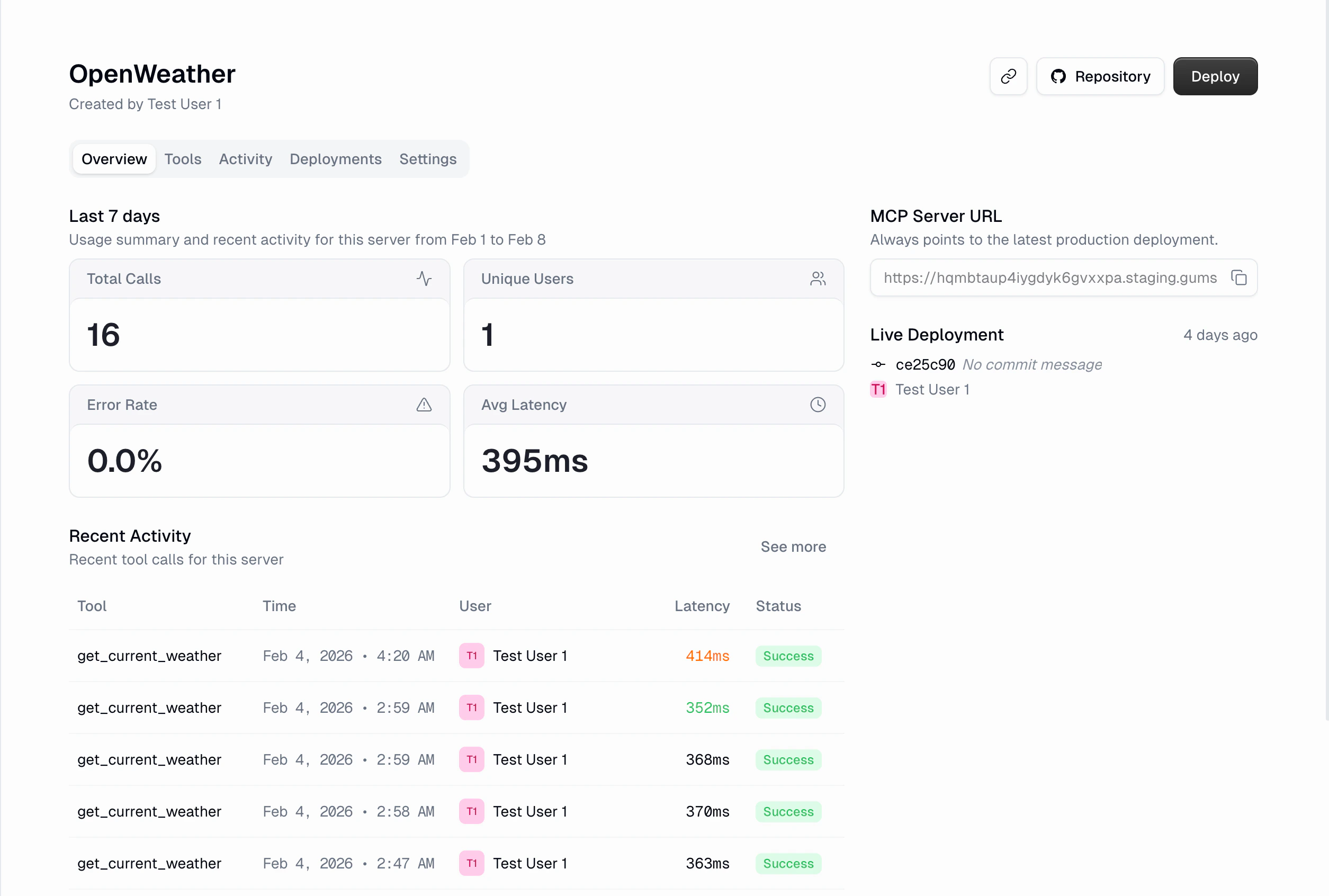 | Metric | Description |
| ---------------- | ----------------------------------------- |
| **Total Calls** | Total tool invocations in the last 7 days |
| **Unique Users** | Distinct users who called tools |
| **Error Rate** | Percentage of calls that failed |
| **Avg Latency** | Average response time in milliseconds |
Below the stats: **Recent activity** (10 most recent tool calls with expandable rows), the **MCP Server URL** (SSE endpoint pointing to the latest production deployment), and the **Deployment overview** showing the currently live deployment and any in-progress builds.
### Activity tab
Server-specific activity log showing all tool calls for this server. Works like the [global Activity page](/platform/activity) with a few key differences:
| Metric | Description |
| ---------------- | ----------------------------------------- |
| **Total Calls** | Total tool invocations in the last 7 days |
| **Unique Users** | Distinct users who called tools |
| **Error Rate** | Percentage of calls that failed |
| **Avg Latency** | Average response time in milliseconds |
Below the stats: **Recent activity** (10 most recent tool calls with expandable rows), the **MCP Server URL** (SSE endpoint pointing to the latest production deployment), and the **Deployment overview** showing the currently live deployment and any in-progress builds.
### Activity tab
Server-specific activity log showing all tool calls for this server. Works like the [global Activity page](/platform/activity) with a few key differences:
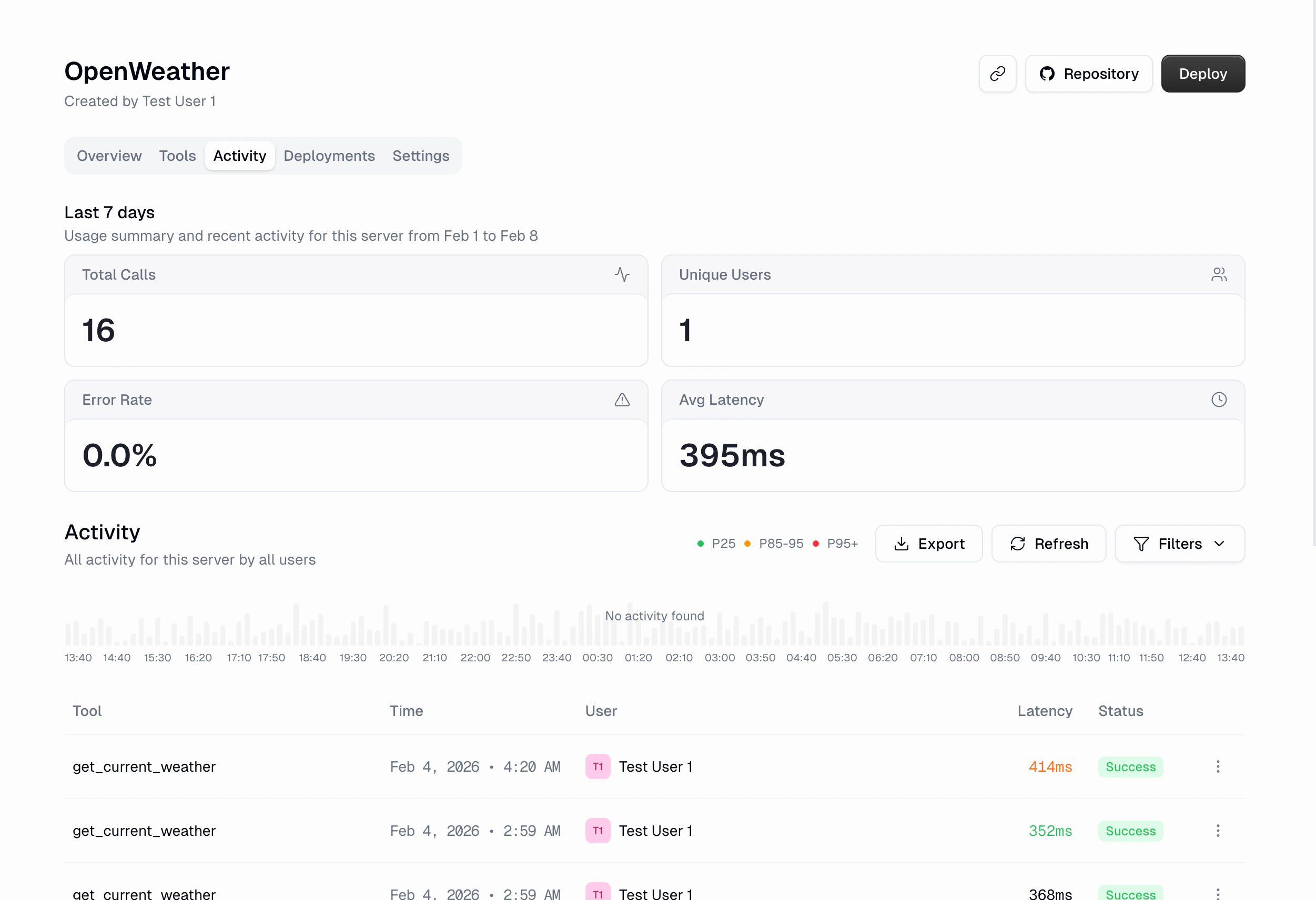 * **4 stat cards** at the top: Total Calls, Unique Users, Error Rate, Avg Latency
* **Tool filter** instead of Server filter (already scoped to this server)
* **Latency percentile indicators**: P25 (green), P85-95 (yellow), P95+ (red)
* **Histogram** with status breakdown (hidden for ranges over 24 hours)
* Pagination: 10 calls per page
### Deployments tab
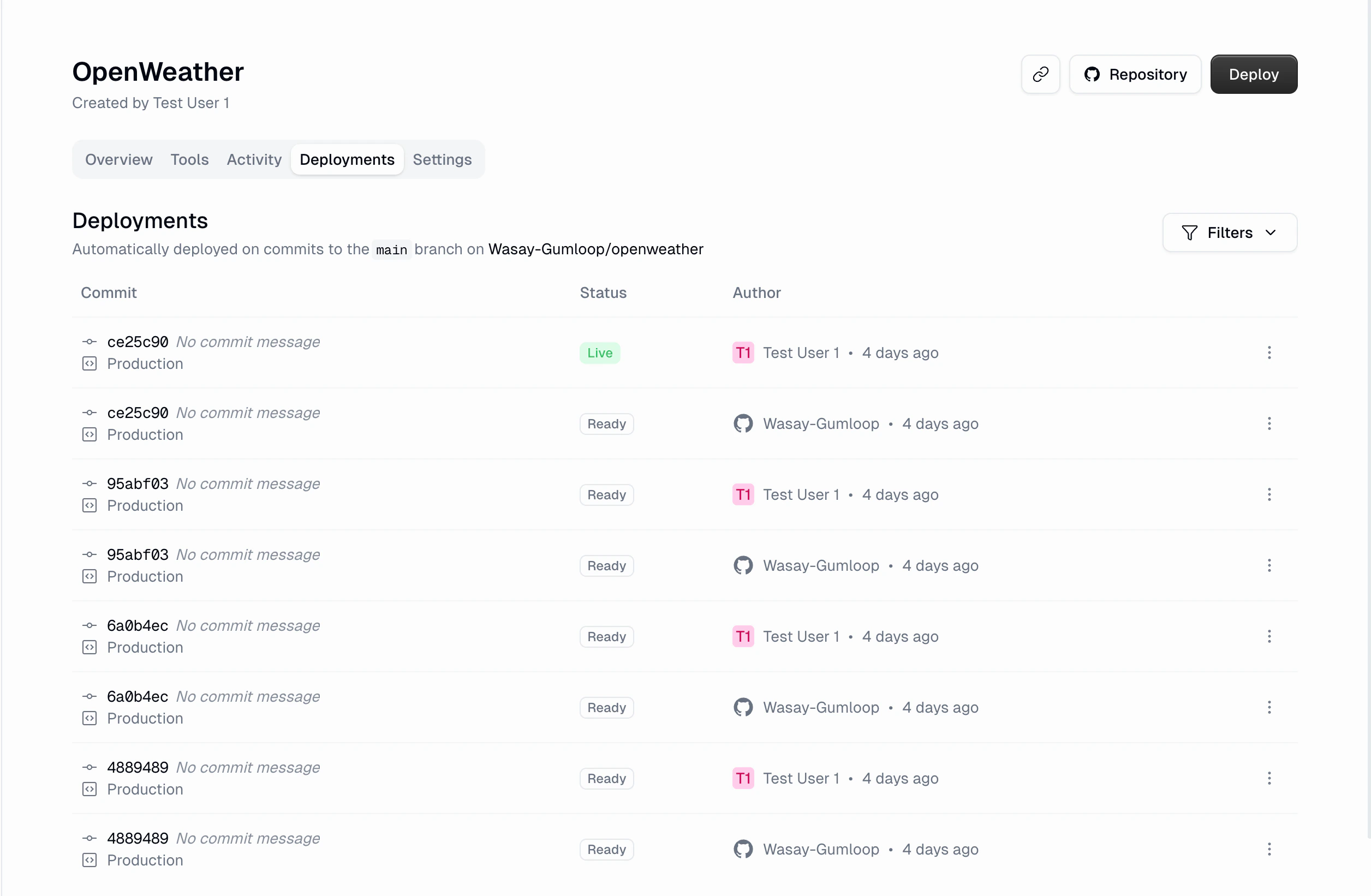
Every push to `main` triggers an automatic deployment if the GitHub App is installed. The deployments tab shows deployment history with status, commit SHA + message, author, and timestamp.
* **4 stat cards** at the top: Total Calls, Unique Users, Error Rate, Avg Latency
* **Tool filter** instead of Server filter (already scoped to this server)
* **Latency percentile indicators**: P25 (green), P85-95 (yellow), P95+ (red)
* **Histogram** with status breakdown (hidden for ranges over 24 hours)
* Pagination: 10 calls per page
### Deployments tab
Every push to `main` triggers an automatic deployment if the GitHub App is installed. The deployments tab shows deployment history with status, commit SHA + message, author, and timestamp.
 **Manual deploy**: Click the **Deploy** button in the server header to open the deploy dialog.
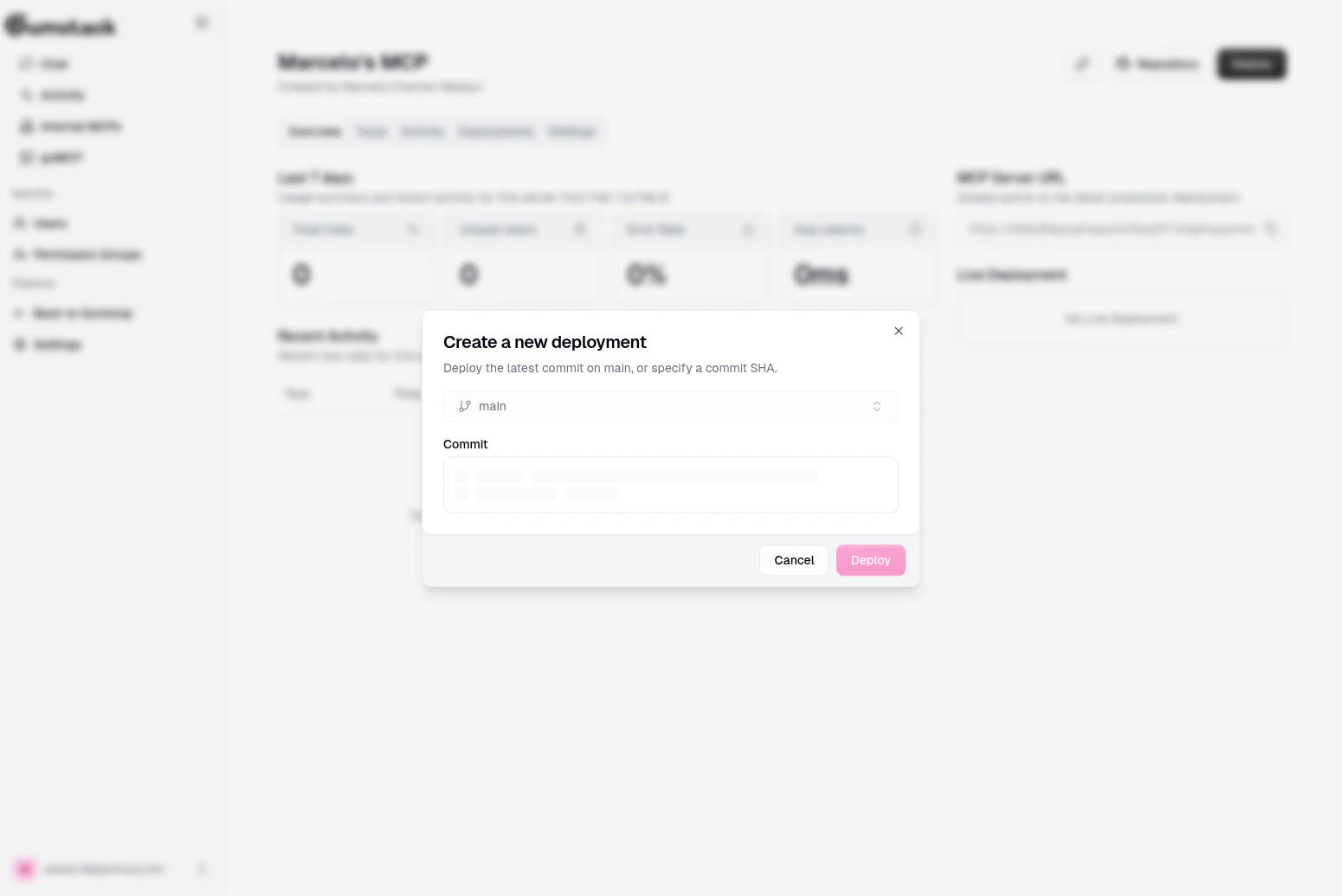 Select the branch (currently locked to `main`), choose a commit (latest or search by SHA), review the details, and click **Deploy**.
**Viewing logs**: Click **View Logs** on any deployment to open the logs modal.
Shows the Docker build process: dependency installation, image creation, and push progress. Includes deployment status, commit SHA, and timestamp. If the build failed, the error is displayed prominently.
Features: search, auto-scroll toggle, line numbers, ANSI color support.
Shows your server's output in production: incoming requests, responses, and errors. The header shows service status, pod count, and revision number.
| Control | Options |
| -------------- | --------------------------------------------------- |
| **Tail lines** | 100, 300, 500, 1000 lines |
| **Time range** | Last 5 min, Last 15 min, Last 1 hour, Last 24 hours |
Features: search, auto-scroll toggle, refresh, line numbers, ANSI color support.
### Settings tab
Select the branch (currently locked to `main`), choose a commit (latest or search by SHA), review the details, and click **Deploy**.
**Viewing logs**: Click **View Logs** on any deployment to open the logs modal.
Shows the Docker build process: dependency installation, image creation, and push progress. Includes deployment status, commit SHA, and timestamp. If the build failed, the error is displayed prominently.
Features: search, auto-scroll toggle, line numbers, ANSI color support.
Shows your server's output in production: incoming requests, responses, and errors. The header shows service status, pod count, and revision number.
| Control | Options |
| -------------- | --------------------------------------------------- |
| **Tail lines** | 100, 300, 500, 1000 lines |
| **Time range** | Last 5 min, Last 15 min, Last 1 hour, Last 24 hours |
Features: search, auto-scroll toggle, refresh, line numbers, ANSI color support.
### Settings tab
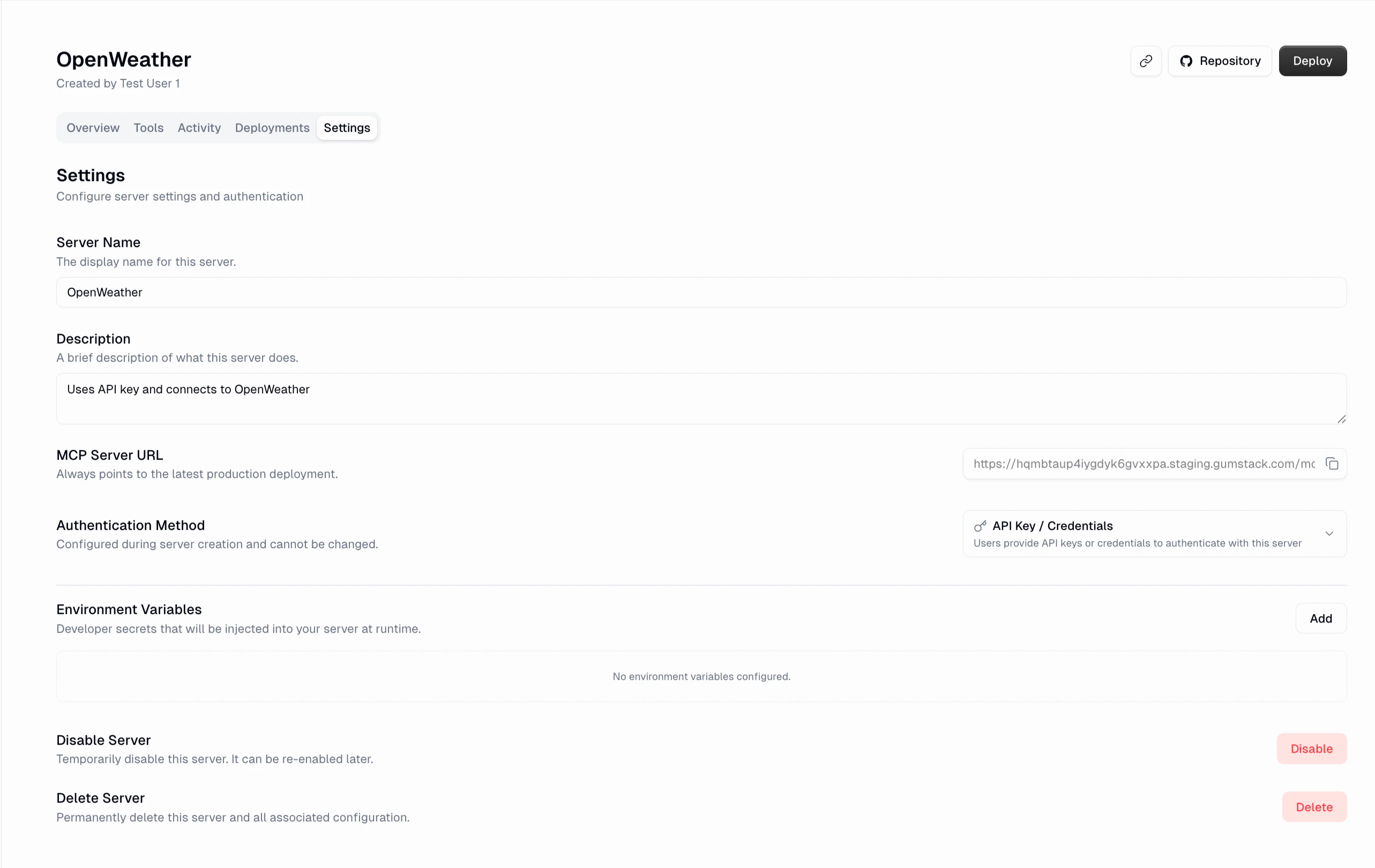 Edit the **Server Name** and **Description**. The **MCP Server URL** is read-only and always points to the latest production deployment.
Read-only display of the authentication method chosen at creation. **Cannot be changed after creation.** Options are: No Authentication, API Key / Credentials, or OAuth 2.0.
Manage key/value pairs securely injected into your server at runtime. Values are masked by default. Each variable supports **Copy key**, **Edit**, and **Remove** actions.
Reserved prefixes `GUMLOOP_*` and `GUMSTACK_*` are not allowed and will be rejected.
**Disable Server**: Temporarily takes the server offline. All endpoints return errors until re-enabled.
**Delete Server**: Permanently removes the server configuration, environment variables, deployment history, and webhooks. Your GitHub repository is **not** deleted.
## Creating a new server
For a full walkthrough, see the [Quickstart](/building/quickstart). The creation wizard has three steps:
1. **Basic Info**: Server name, description, GitHub org, repository name, visibility
2. **Authentication & Environment**: Auth method and environment variables
3. **Review**: Summary of all settings with edit buttons per section
You need a [GitHub connection](/platform/settings) configured before creating servers.
## Related docs
Full walkthrough for creating your first server
Pre-built servers managed by Gumloop
Control which groups can access which tools
Push-to-deploy details and scaling
Edit the **Server Name** and **Description**. The **MCP Server URL** is read-only and always points to the latest production deployment.
Read-only display of the authentication method chosen at creation. **Cannot be changed after creation.** Options are: No Authentication, API Key / Credentials, or OAuth 2.0.
Manage key/value pairs securely injected into your server at runtime. Values are masked by default. Each variable supports **Copy key**, **Edit**, and **Remove** actions.
Reserved prefixes `GUMLOOP_*` and `GUMSTACK_*` are not allowed and will be rejected.
**Disable Server**: Temporarily takes the server offline. All endpoints return errors until re-enabled.
**Delete Server**: Permanently removes the server configuration, environment variables, deployment history, and webhooks. Your GitHub repository is **not** deleted.
## Creating a new server
For a full walkthrough, see the [Quickstart](/building/quickstart). The creation wizard has three steps:
1. **Basic Info**: Server name, description, GitHub org, repository name, visibility
2. **Authentication & Environment**: Auth method and environment variables
3. **Review**: Summary of all settings with edit buttons per section
You need a [GitHub connection](/platform/settings) configured before creating servers.
## Related docs
Full walkthrough for creating your first server
Pre-built servers managed by Gumloop
Control which groups can access which tools
Push-to-deploy details and scaling