> ## Documentation Index
> Fetch the complete documentation index at: https://docs.gumstack.com/llms.txt
> Use this file to discover all available pages before exploring further.
# Permission Groups
> Control which users can access which MCP tools, features, and nodes
Permission groups are how you manage access control in Gumstack. Create groups that match your teams, add users, and configure what each group can access: tools, features, scopes, and pipeline nodes.
 ## How it works
1. **Create groups** that match your organization's teams or roles
2. **Add users** to the appropriate group
3. **Configure access** per group: tool access, feature restrictions, app scopes, and node denylists
When a user calls an MCP tool, Gumstack checks if their group has access to that tool on that server. If not, the call is blocked and logged as "Permission Denied" in the [Activity](/platform/activity) dashboard.
Each user can only belong to **one permission group** at a time. Adding a user to a new group automatically removes them from their current group.
## Permission groups list
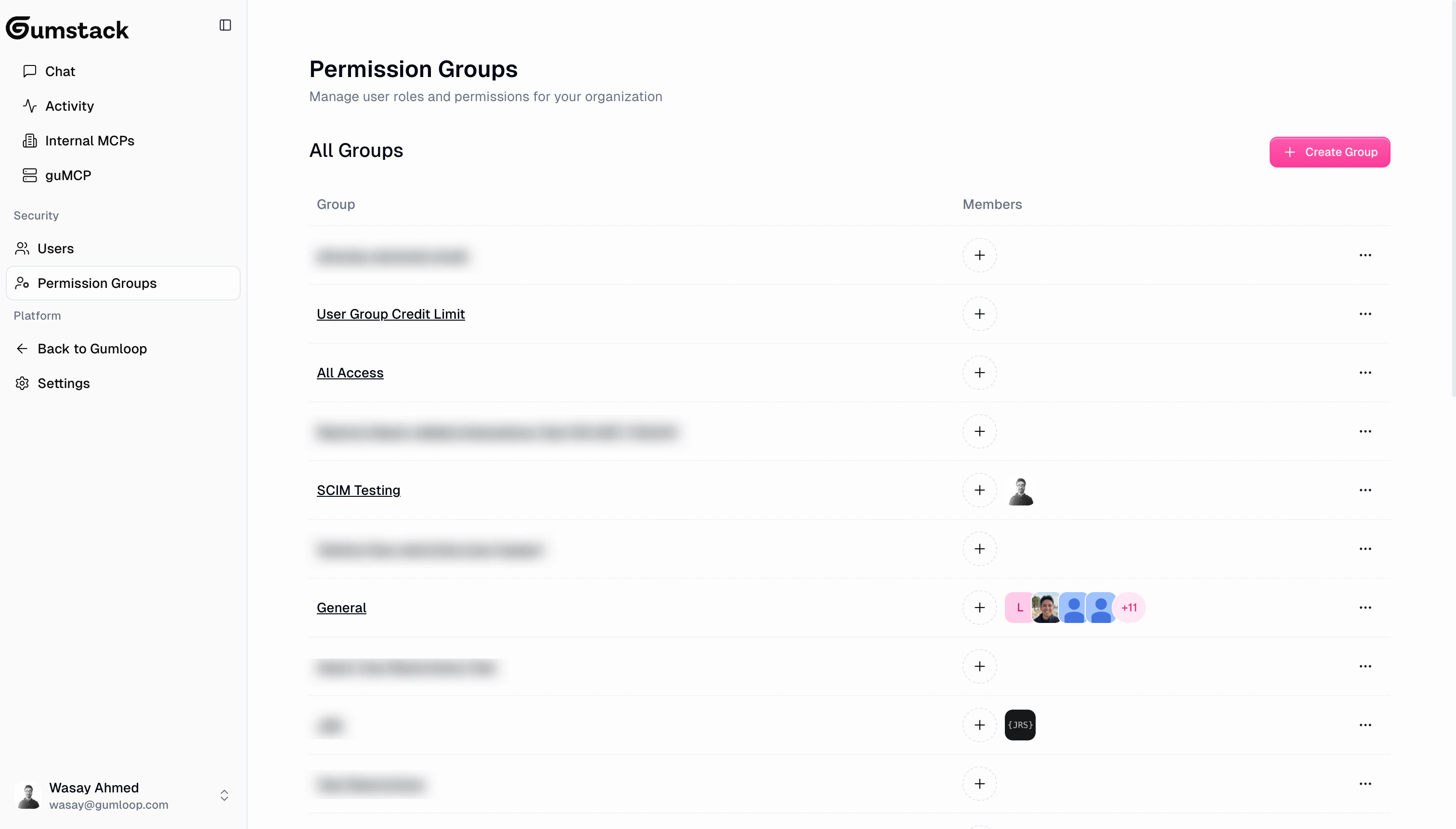
The list page shows all your groups with their name, member count, and recent member avatars. The default group is marked with a "Default" badge.
## Creating a group
Click **Create Group** to open the create dialog. You only need to provide a **group name**. All other settings are configured after creation on the group's detail page.
## How it works
1. **Create groups** that match your organization's teams or roles
2. **Add users** to the appropriate group
3. **Configure access** per group: tool access, feature restrictions, app scopes, and node denylists
When a user calls an MCP tool, Gumstack checks if their group has access to that tool on that server. If not, the call is blocked and logged as "Permission Denied" in the [Activity](/platform/activity) dashboard.
Each user can only belong to **one permission group** at a time. Adding a user to a new group automatically removes them from their current group.
## Permission groups list
The list page shows all your groups with their name, member count, and recent member avatars. The default group is marked with a "Default" badge.
## Creating a group
Click **Create Group** to open the create dialog. You only need to provide a **group name**. All other settings are configured after creation on the group's detail page.
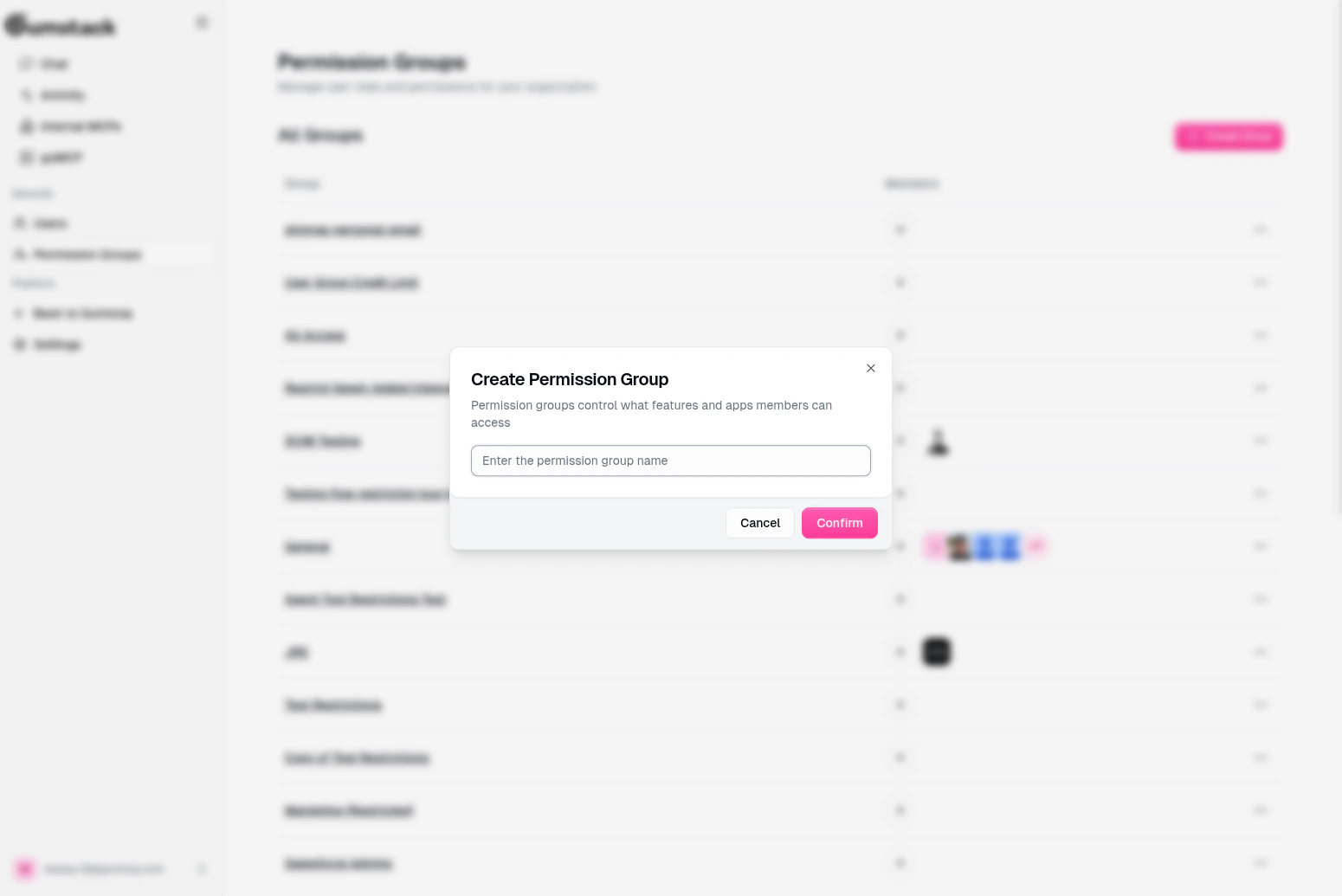 Use clear, role-based names like "Engineering", "Sales Ops", or "Data Analysts" so it's obvious who belongs in each group.
## Group detail
Click any group to see its detail page with five configurable views.
Use clear, role-based names like "Engineering", "Sales Ops", or "Data Analysts" so it's obvious who belongs in each group.
## Group detail
Click any group to see its detail page with five configurable views.
 ### Members
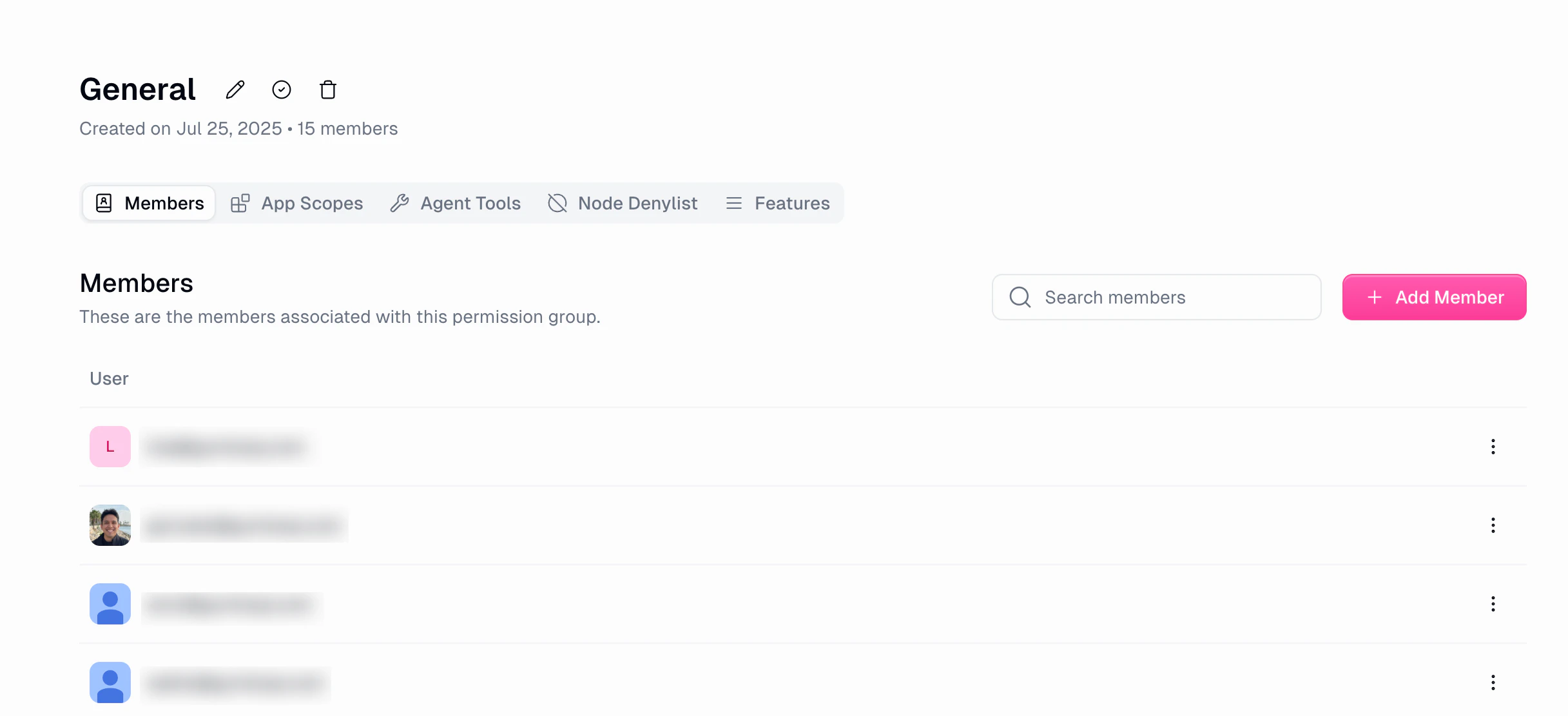
Manage who belongs to this group. Use **Search** to filter members, click **Add Member** to add users from your organization, and use the dropdown on any member row to **Remove** them. Paginated at 15 members per page.
If you add a user who's already in another group, they'll be moved to this one. A confirmation dialog warns you before this happens.
### Features
Toggle feature restrictions and set usage limits for members of this group.
**Restrictions (on/off toggles):**
| Restriction | Description |
| ------------------------------------------ | ---------------------------------------------------- |
| **Restrict Workspace Creation** | Cannot create new workspaces |
| **Restrict Workspace Credential Addition** | Cannot add credentials to workspaces |
| **Restrict MCP Node Creation** | Cannot create MCP nodes |
| **Restrict Sharing Public Flows** | Cannot share flows and interfaces publicly |
| **Restrict Flow Modification** | Cannot create, update, or delete flows and workbooks |
| **Restrict Agent Modification** | Cannot create, update, or delete agents |
**Usage limits:**
| Limit | Description |
| ----------------------------- | ---------------------------------------------------------- |
| **User Concurrent Run Limit** | Maximum concurrent workflow runs per user (0 to org limit) |
| **User Monthly Credit Cap** | Monthly credit cap per user (leave blank for org limit) |
All changes save immediately.
### Agent Tools
Control which MCP server tools this group's members can access.
* Click **Add Tool Restrictions** to select servers and configure tool-level access
* Each entry shows the server name, restricted tools, and date added
* Edit or delete existing restrictions
This is the flip side of the per-server [tool access matrix](/platform/internal-servers). Changes here are reflected on the server's Tools tab and vice versa.
### App Scopes
Restrict which OAuth scopes this group's members can use for each app category.
* Click **Add App Scopes** to configure scope restrictions
* Each entry shows the app category, configured scopes, and date added
* Edit or delete existing scope restrictions
### Node Denylist
Block specific pipeline nodes for this group.
* Click **Add Nodes** to select nodes to block
* Blocked nodes won't appear in the Gumloop pipeline builder for members of this group
* Edit or delete existing denylists
### Header actions
The group detail header includes: **Rename** (pencil icon), **Set as Default Group** (only for non-default groups), and **Delete** (only for non-default groups, requires confirmation).
## Default group
One permission group is the **default group**. It's shown with a "Default" badge, cannot be deleted (you must set another group as default first), and new users may be automatically assigned to it. Change the default from any group's detail page using "Set as Default Group".
## Tool access matrix
Tool access can be configured from two places, and both stay in sync:
1. **Permission Group > Agent Tools**: Configure tool access across all servers for a group
2. **Server > Tools & Access tab**: Configure group access per tool on a specific server
### Members
Manage who belongs to this group. Use **Search** to filter members, click **Add Member** to add users from your organization, and use the dropdown on any member row to **Remove** them. Paginated at 15 members per page.
If you add a user who's already in another group, they'll be moved to this one. A confirmation dialog warns you before this happens.
### Features
Toggle feature restrictions and set usage limits for members of this group.
**Restrictions (on/off toggles):**
| Restriction | Description |
| ------------------------------------------ | ---------------------------------------------------- |
| **Restrict Workspace Creation** | Cannot create new workspaces |
| **Restrict Workspace Credential Addition** | Cannot add credentials to workspaces |
| **Restrict MCP Node Creation** | Cannot create MCP nodes |
| **Restrict Sharing Public Flows** | Cannot share flows and interfaces publicly |
| **Restrict Flow Modification** | Cannot create, update, or delete flows and workbooks |
| **Restrict Agent Modification** | Cannot create, update, or delete agents |
**Usage limits:**
| Limit | Description |
| ----------------------------- | ---------------------------------------------------------- |
| **User Concurrent Run Limit** | Maximum concurrent workflow runs per user (0 to org limit) |
| **User Monthly Credit Cap** | Monthly credit cap per user (leave blank for org limit) |
All changes save immediately.
### Agent Tools
Control which MCP server tools this group's members can access.
* Click **Add Tool Restrictions** to select servers and configure tool-level access
* Each entry shows the server name, restricted tools, and date added
* Edit or delete existing restrictions
This is the flip side of the per-server [tool access matrix](/platform/internal-servers). Changes here are reflected on the server's Tools tab and vice versa.
### App Scopes
Restrict which OAuth scopes this group's members can use for each app category.
* Click **Add App Scopes** to configure scope restrictions
* Each entry shows the app category, configured scopes, and date added
* Edit or delete existing scope restrictions
### Node Denylist
Block specific pipeline nodes for this group.
* Click **Add Nodes** to select nodes to block
* Blocked nodes won't appear in the Gumloop pipeline builder for members of this group
* Edit or delete existing denylists
### Header actions
The group detail header includes: **Rename** (pencil icon), **Set as Default Group** (only for non-default groups), and **Delete** (only for non-default groups, requires confirmation).
## Default group
One permission group is the **default group**. It's shown with a "Default" badge, cannot be deleted (you must set another group as default first), and new users may be automatically assigned to it. Change the default from any group's detail page using "Set as Default Group".
## Tool access matrix
Tool access can be configured from two places, and both stay in sync:
1. **Permission Group > Agent Tools**: Configure tool access across all servers for a group
2. **Server > Tools & Access tab**: Configure group access per tool on a specific server
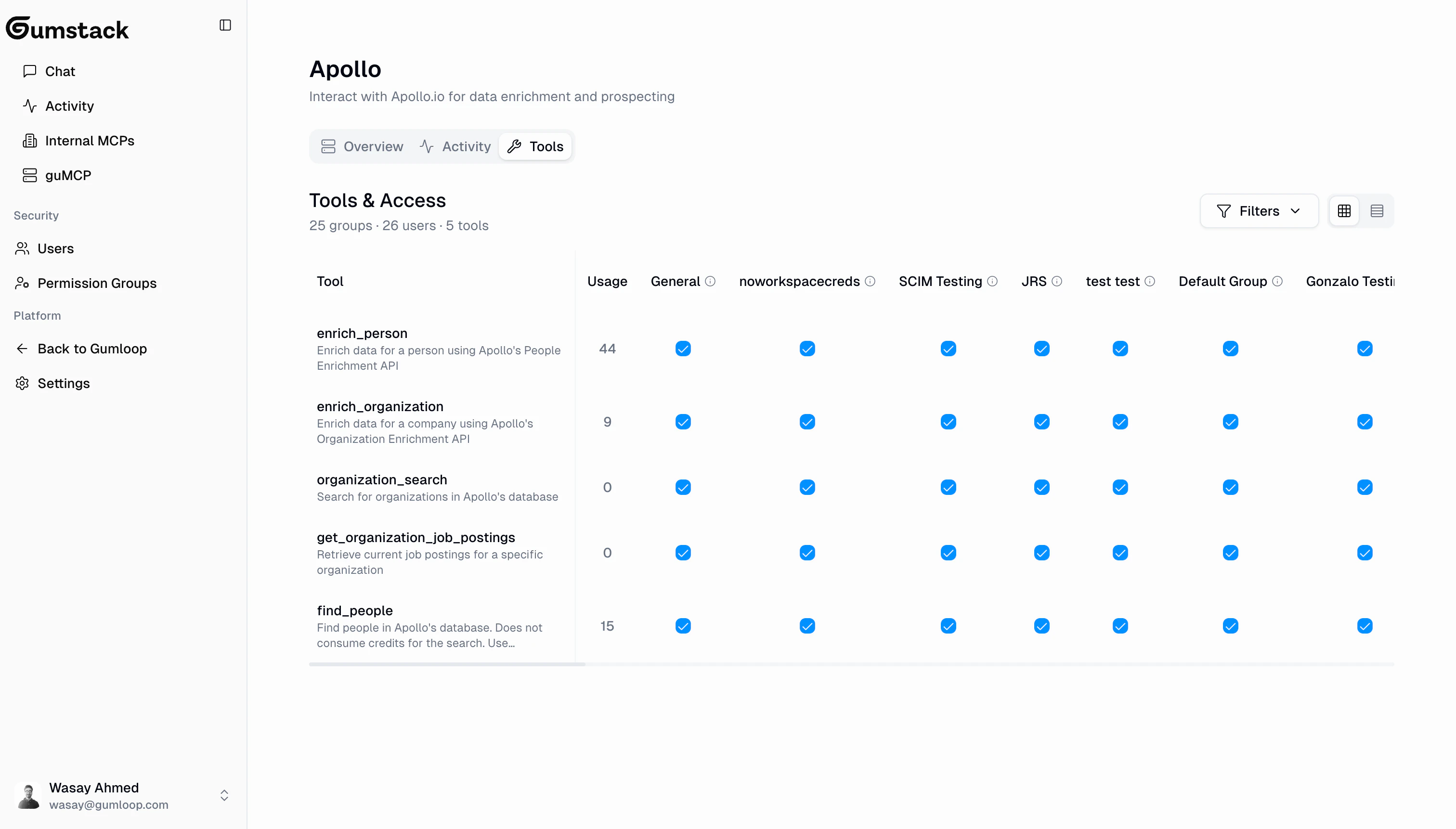 Changes are batched. A floating action bar appears with **Save Changes** and **Discard Changes** when you make changes.
Changes take effect immediately after saving. In-progress calls complete, but new calls from a revoked group will be denied.
## Best practices
Create groups that mirror your teams: Engineering, Marketing, Data, Sales. Since users can only be in one group, make sure each group covers all the access its members need.
When setting up a new server, start with no tool access for most groups. Grant access tool-by-tool as teams need it.
Set a sensible default group with baseline permissions. New users are assigned to it, so it should have the minimum access most people need.
Periodically check the permission matrix on each server. As teams change and tools evolve, access levels should be updated.
Check the [Activity](/platform/activity) dashboard for "Permission Denied" entries. Frequent denials might mean a group needs access to a tool they're blocked from.
## Related docs
Manage user roles and group membership
Configure tool access on your custom servers
Configure tool access on pre-built servers
Monitor permission denials and tool usage
Changes are batched. A floating action bar appears with **Save Changes** and **Discard Changes** when you make changes.
Changes take effect immediately after saving. In-progress calls complete, but new calls from a revoked group will be denied.
## Best practices
Create groups that mirror your teams: Engineering, Marketing, Data, Sales. Since users can only be in one group, make sure each group covers all the access its members need.
When setting up a new server, start with no tool access for most groups. Grant access tool-by-tool as teams need it.
Set a sensible default group with baseline permissions. New users are assigned to it, so it should have the minimum access most people need.
Periodically check the permission matrix on each server. As teams change and tools evolve, access levels should be updated.
Check the [Activity](/platform/activity) dashboard for "Permission Denied" entries. Frequent denials might mean a group needs access to a tool they're blocked from.
## Related docs
Manage user roles and group membership
Configure tool access on your custom servers
Configure tool access on pre-built servers
Monitor permission denials and tool usage