> ## Documentation Index
> Fetch the complete documentation index at: https://docs.gumstack.com/llms.txt
> Use this file to discover all available pages before exploring further.
# Settings
> Connect GitHub and configure your Gumstack organization
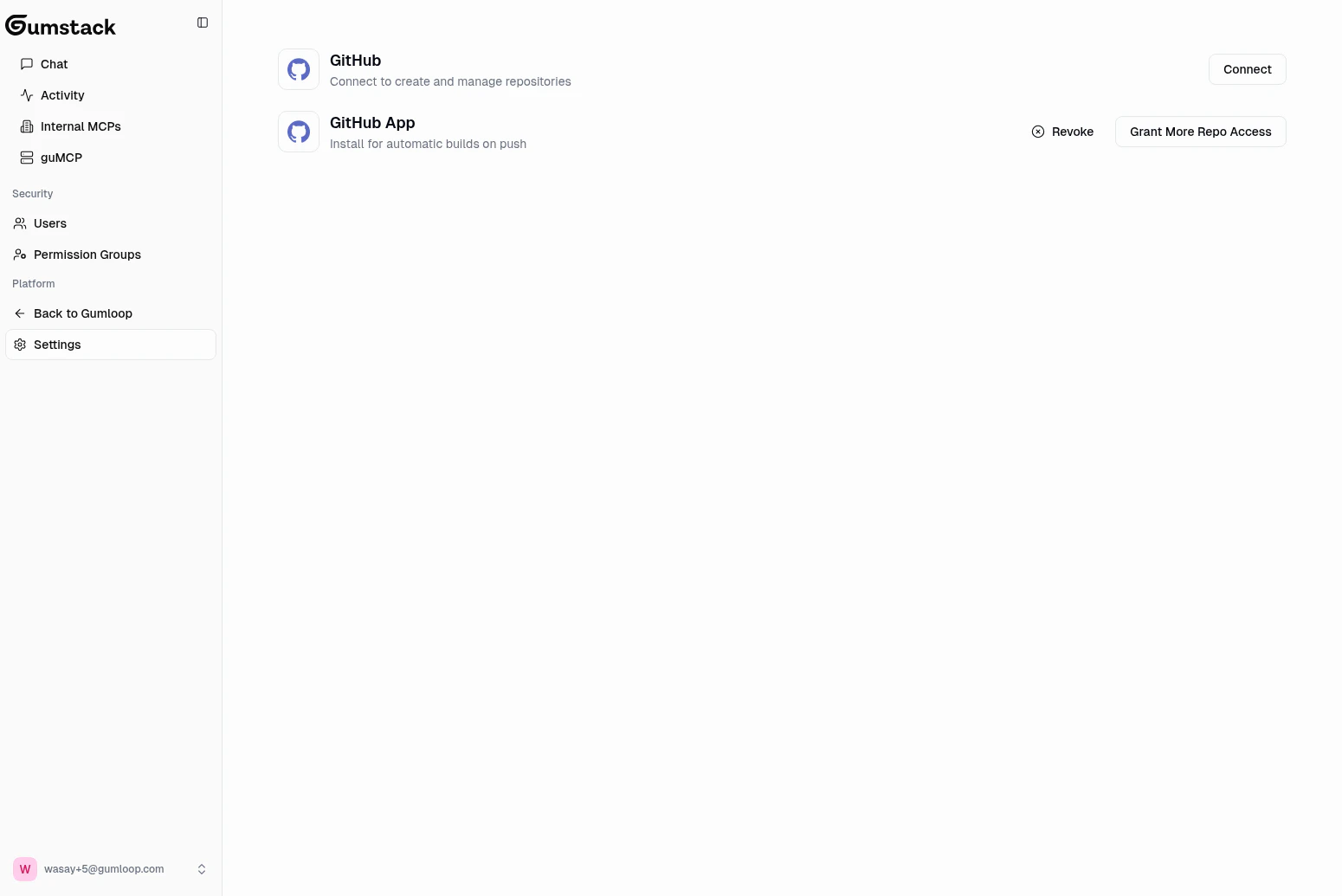
The Settings page is where you configure your organization's GitHub connection for deploying custom MCP servers. There are two separate GitHub integrations: **GitHub OAuth** (personal account) and the **GitHub App** (organization-level CI/CD).
 ## GitHub OAuth
Connect your personal GitHub account to Gumstack. This is used for creating repositories and managing server code.
Click **Settings** in the sidebar or go to `gumloop.com/gumstack/settings`.
Click **Connect GitHub** and authorize Gumstack to access your GitHub account.
Choose which GitHub organization Gumstack should use for creating server repositories.
Once connected, you'll see your GitHub username and a **Reconnect** button. Reconnect at any time to update your authorization or switch accounts.
### What GitHub OAuth enables
* **Creating repositories**: When you create a new internal server, Gumstack creates a GitHub repo in your connected org
* **Browsing organizations**: Gumstack reads your GitHub orgs to populate the org selector during server creation
* **Repository access**: Gumstack can link to and manage the repos it creates
## GitHub App
The Gumloop GitHub App provides organization-level CI/CD for automatic builds and deployments. When installed, every push to `main` on a server repository triggers an automatic build and deployment.
### Installing the GitHub App
On the Settings page, click the **Install GitHub App** button under the GitHub App section.
Choose which repositories the app should have access to. You can grant access to all repos or select specific ones.
Complete the GitHub installation flow. The app status will update to "Installed" on the Settings page.
### Managing the GitHub App
After installation, you can:
* **Grant access to more repositories** as you create new servers. When a new server is created, you may need to update the app's repository access.
* **Revoke the app** entirely using the revoke button (requires confirmation)
Revoking the GitHub App will stop automatic deployments for **all servers** in your organization. Only do this if you're sure you want to disable CI/CD.
## What each integration does
| Integration | Scope | Purpose |
| ---------------- | ----------------- | ---------------------------------------------- |
| **GitHub OAuth** | Personal account | Creating repositories, browsing orgs |
| **GitHub App** | Organization-wide | Automatic builds on push, deployment pipelines |
Both integrations are needed for the full workflow. **GitHub OAuth** lets you create server repositories, and the **GitHub App** enables automatic deployments when you push code.
## When do you need GitHub?
| Use case | GitHub required? |
| -------------------------------- | ---------------------------- |
| Using guMCP (pre-built) servers | No |
| Managing users and permissions | No |
| Monitoring activity | No |
| Creating custom internal servers | **Yes** (both OAuth and App) |
| Automatic deployments on push | **Yes** (GitHub App) |
If you only plan to use guMCP servers and manage security settings, you don't need to connect GitHub at all.
## Troubleshooting
Click **Connect GitHub** and complete the authorization flow. Make sure you're authorizing the correct GitHub account that has access to your organization.
Check that the GitHub App has access to the specific repository. Go to your GitHub organization's settings, find the Gumloop app installation, and ensure the repo is included.
Your GitHub account must be a member (or owner) of the organization. Try reconnecting GitHub OAuth to refresh the organization list.
## Related docs
Create and manage your custom servers
Deploy your first server after connecting GitHub
## GitHub OAuth
Connect your personal GitHub account to Gumstack. This is used for creating repositories and managing server code.
Click **Settings** in the sidebar or go to `gumloop.com/gumstack/settings`.
Click **Connect GitHub** and authorize Gumstack to access your GitHub account.
Choose which GitHub organization Gumstack should use for creating server repositories.
Once connected, you'll see your GitHub username and a **Reconnect** button. Reconnect at any time to update your authorization or switch accounts.
### What GitHub OAuth enables
* **Creating repositories**: When you create a new internal server, Gumstack creates a GitHub repo in your connected org
* **Browsing organizations**: Gumstack reads your GitHub orgs to populate the org selector during server creation
* **Repository access**: Gumstack can link to and manage the repos it creates
## GitHub App
The Gumloop GitHub App provides organization-level CI/CD for automatic builds and deployments. When installed, every push to `main` on a server repository triggers an automatic build and deployment.
### Installing the GitHub App
On the Settings page, click the **Install GitHub App** button under the GitHub App section.
Choose which repositories the app should have access to. You can grant access to all repos or select specific ones.
Complete the GitHub installation flow. The app status will update to "Installed" on the Settings page.
### Managing the GitHub App
After installation, you can:
* **Grant access to more repositories** as you create new servers. When a new server is created, you may need to update the app's repository access.
* **Revoke the app** entirely using the revoke button (requires confirmation)
Revoking the GitHub App will stop automatic deployments for **all servers** in your organization. Only do this if you're sure you want to disable CI/CD.
## What each integration does
| Integration | Scope | Purpose |
| ---------------- | ----------------- | ---------------------------------------------- |
| **GitHub OAuth** | Personal account | Creating repositories, browsing orgs |
| **GitHub App** | Organization-wide | Automatic builds on push, deployment pipelines |
Both integrations are needed for the full workflow. **GitHub OAuth** lets you create server repositories, and the **GitHub App** enables automatic deployments when you push code.
## When do you need GitHub?
| Use case | GitHub required? |
| -------------------------------- | ---------------------------- |
| Using guMCP (pre-built) servers | No |
| Managing users and permissions | No |
| Monitoring activity | No |
| Creating custom internal servers | **Yes** (both OAuth and App) |
| Automatic deployments on push | **Yes** (GitHub App) |
If you only plan to use guMCP servers and manage security settings, you don't need to connect GitHub at all.
## Troubleshooting
Click **Connect GitHub** and complete the authorization flow. Make sure you're authorizing the correct GitHub account that has access to your organization.
Check that the GitHub App has access to the specific repository. Go to your GitHub organization's settings, find the Gumloop app installation, and ensure the repo is included.
Your GitHub account must be a member (or owner) of the organization. Try reconnecting GitHub OAuth to refresh the organization list.
## Related docs
Create and manage your custom servers
Deploy your first server after connecting GitHub