> ## Documentation Index
> Fetch the complete documentation index at: https://docs.gumstack.com/llms.txt
> Use this file to discover all available pages before exploring further.
# Users
> Manage who has access to Gumstack and your MCP servers
The Users page shows everyone in your organization who has access to MCP servers through Gumstack. View roles, permission groups, and drill into individual tool usage history.
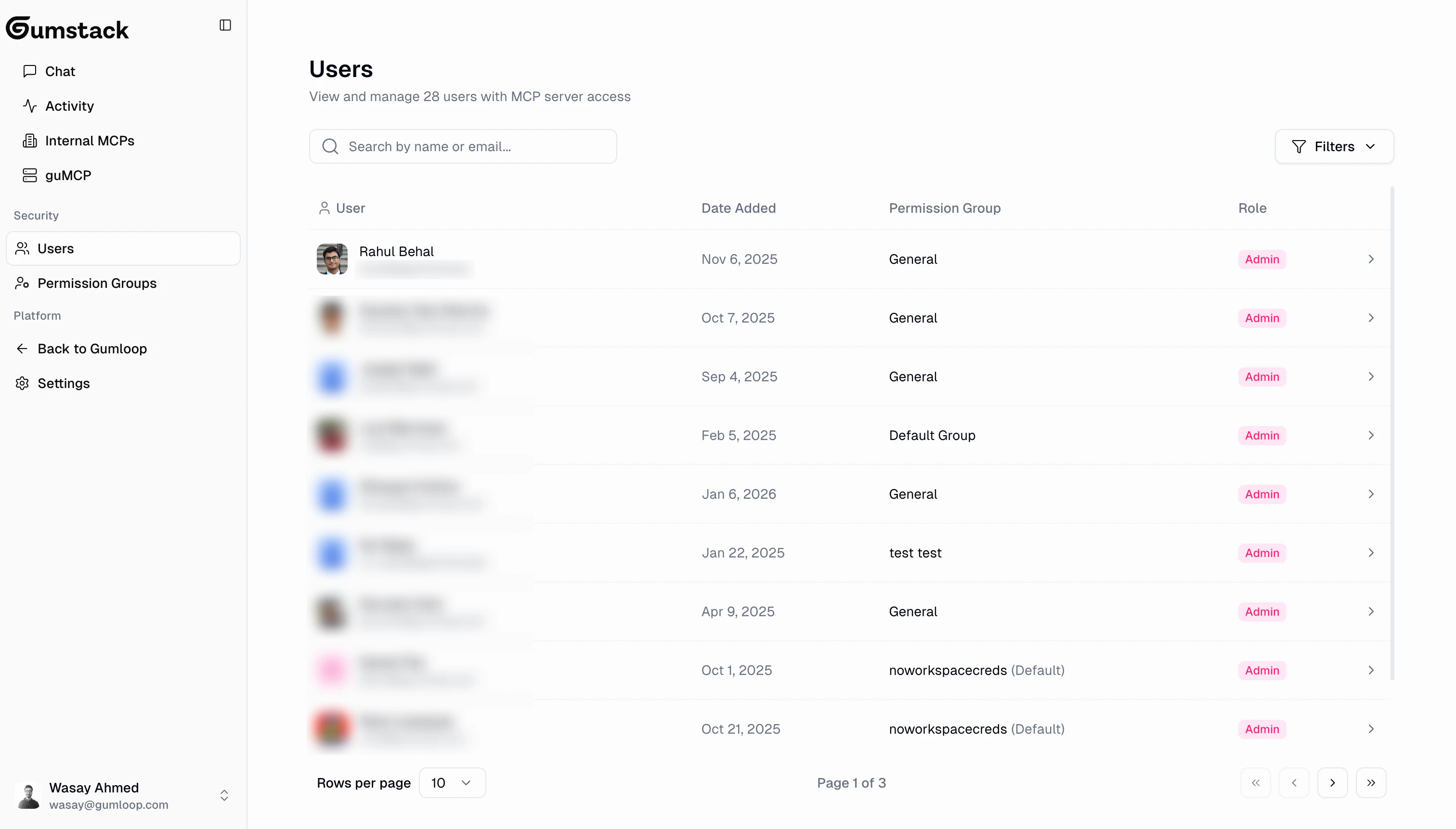 ## Users table
| Column | Description |
| -------------------- | ------------------------------------------- |
| **User** | Avatar and display name |
| **Date Added** | When the user was added to the organization |
| **Permission Group** | Which group the user belongs to |
| **Role** | Admin, Manager, or Member |
| **Actions** | Navigate to user detail |
Pagination: 10 users per page.
### Filtering
| Filter | Description |
| -------------------- | ------------------------------------ |
| **Search** | Filter by name or email |
| **Role** | Show only users with a specific role |
| **Permission Group** | Show only users in a specific group |
## Roles
| Role | Gumstack Access | Description |
| ------------------ | --------------- | --------------------------------------------- |
| **Admin** | Full | Full organization admin with Gumstack access |
| **Gumstack Admin** | Full | Dedicated Gumstack role, not a full org admin |
| **Manager** | No | Organization manager without Gumstack access |
| **Member** | No | Standard member without Gumstack access |
Only **Admin** and **Gumstack Admin** roles can access the Gumstack dashboard. Members and Managers can still use MCP tools through Gumloop workflows, subject to their permission group's tool access settings.
Role changes and user invitations are managed in the main Gumloop organization settings, not from the Gumstack users page.
## User detail
Click any user to view their profile and complete activity log.
## Users table
| Column | Description |
| -------------------- | ------------------------------------------- |
| **User** | Avatar and display name |
| **Date Added** | When the user was added to the organization |
| **Permission Group** | Which group the user belongs to |
| **Role** | Admin, Manager, or Member |
| **Actions** | Navigate to user detail |
Pagination: 10 users per page.
### Filtering
| Filter | Description |
| -------------------- | ------------------------------------ |
| **Search** | Filter by name or email |
| **Role** | Show only users with a specific role |
| **Permission Group** | Show only users in a specific group |
## Roles
| Role | Gumstack Access | Description |
| ------------------ | --------------- | --------------------------------------------- |
| **Admin** | Full | Full organization admin with Gumstack access |
| **Gumstack Admin** | Full | Dedicated Gumstack role, not a full org admin |
| **Manager** | No | Organization manager without Gumstack access |
| **Member** | No | Standard member without Gumstack access |
Only **Admin** and **Gumstack Admin** roles can access the Gumstack dashboard. Members and Managers can still use MCP tools through Gumloop workflows, subject to their permission group's tool access settings.
Role changes and user invitations are managed in the main Gumloop organization settings, not from the Gumstack users page.
## User detail
Click any user to view their profile and complete activity log.
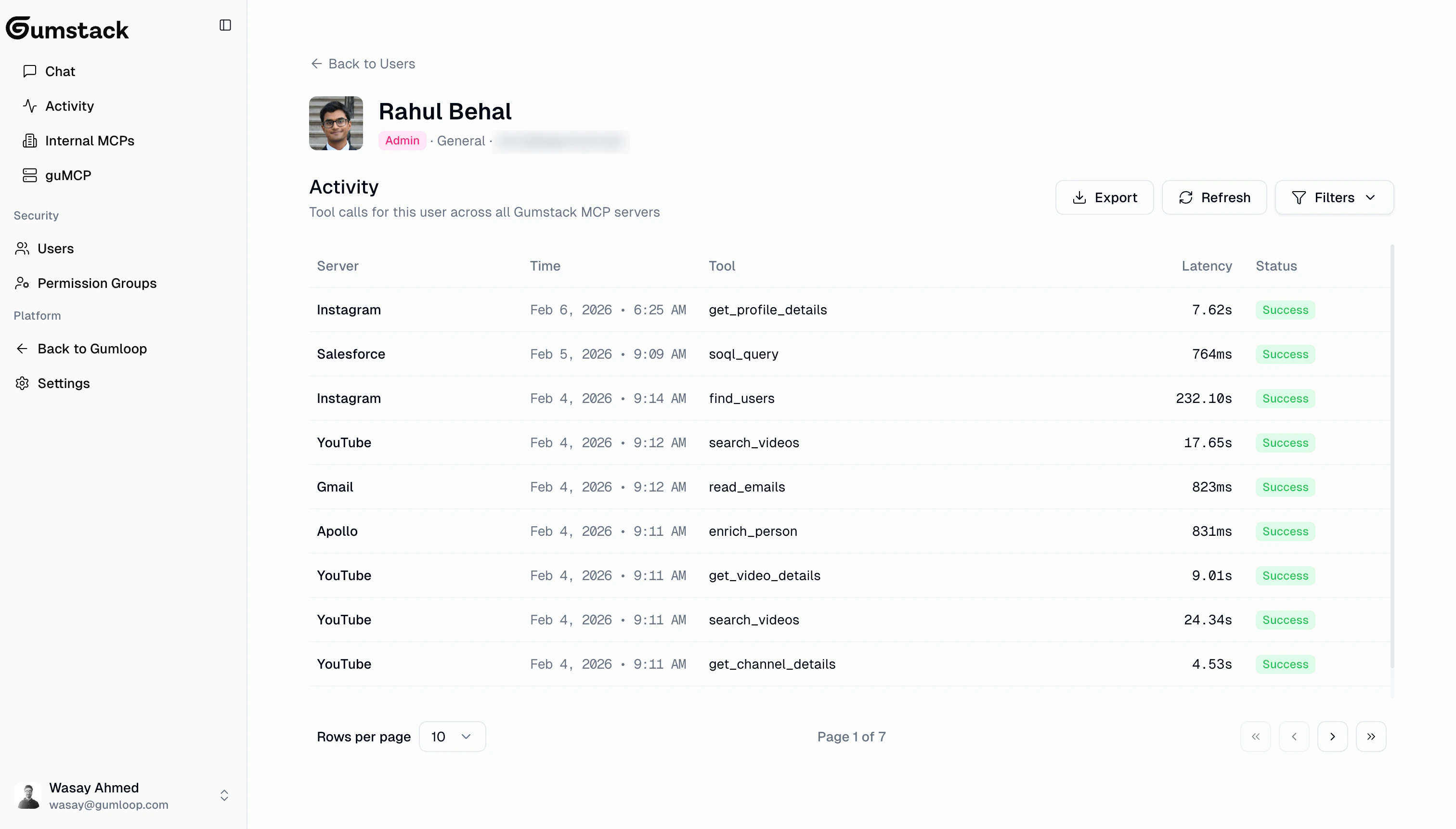 The detail page shows the user's role, permission group, and email, followed by a complete **activity log** of all their tool calls across every server. This uses the same table format as the [global Activity page](/platform/activity).
You can:
* **Expand rows** to see full input/output JSON for each call
* **Filter** by status, tool, and date range
* **Export to CSV** (filename: `{user-name}-activity-{date}.csv`)
This is invaluable for **auditing** (who called what and when), **troubleshooting** (investigating errors for a specific user), and **usage analysis** (understanding how individual team members use AI tools).
## Group membership
Users are assigned to [permission groups](/platform/permission-groups) which control their tool-level access. Each user belongs to **one group** at a time.
Group membership is managed from the [Permission Groups](/platform/permission-groups) page. Click into a group and use **Add Member** to assign a user, or use the dropdown on a member row to remove them.
Assign new team members to the appropriate permission group right away so they have the correct tool access from day one.
## Related docs
Create and manage groups for tool access control
Monitor tool usage across your organization
The detail page shows the user's role, permission group, and email, followed by a complete **activity log** of all their tool calls across every server. This uses the same table format as the [global Activity page](/platform/activity).
You can:
* **Expand rows** to see full input/output JSON for each call
* **Filter** by status, tool, and date range
* **Export to CSV** (filename: `{user-name}-activity-{date}.csv`)
This is invaluable for **auditing** (who called what and when), **troubleshooting** (investigating errors for a specific user), and **usage analysis** (understanding how individual team members use AI tools).
## Group membership
Users are assigned to [permission groups](/platform/permission-groups) which control their tool-level access. Each user belongs to **one group** at a time.
Group membership is managed from the [Permission Groups](/platform/permission-groups) page. Click into a group and use **Add Member** to assign a user, or use the dropdown on a member row to remove them.
Assign new team members to the appropriate permission group right away so they have the correct tool access from day one.
## Related docs
Create and manage groups for tool access control
Monitor tool usage across your organization