

Users connecting from external clients must have a Gumloop account and be part of your organization. Gumstack authenticates external connections via an OAuth flow tied to the user’s Gumloop identity. There is no anonymous or token-only access.
Getting your server URL
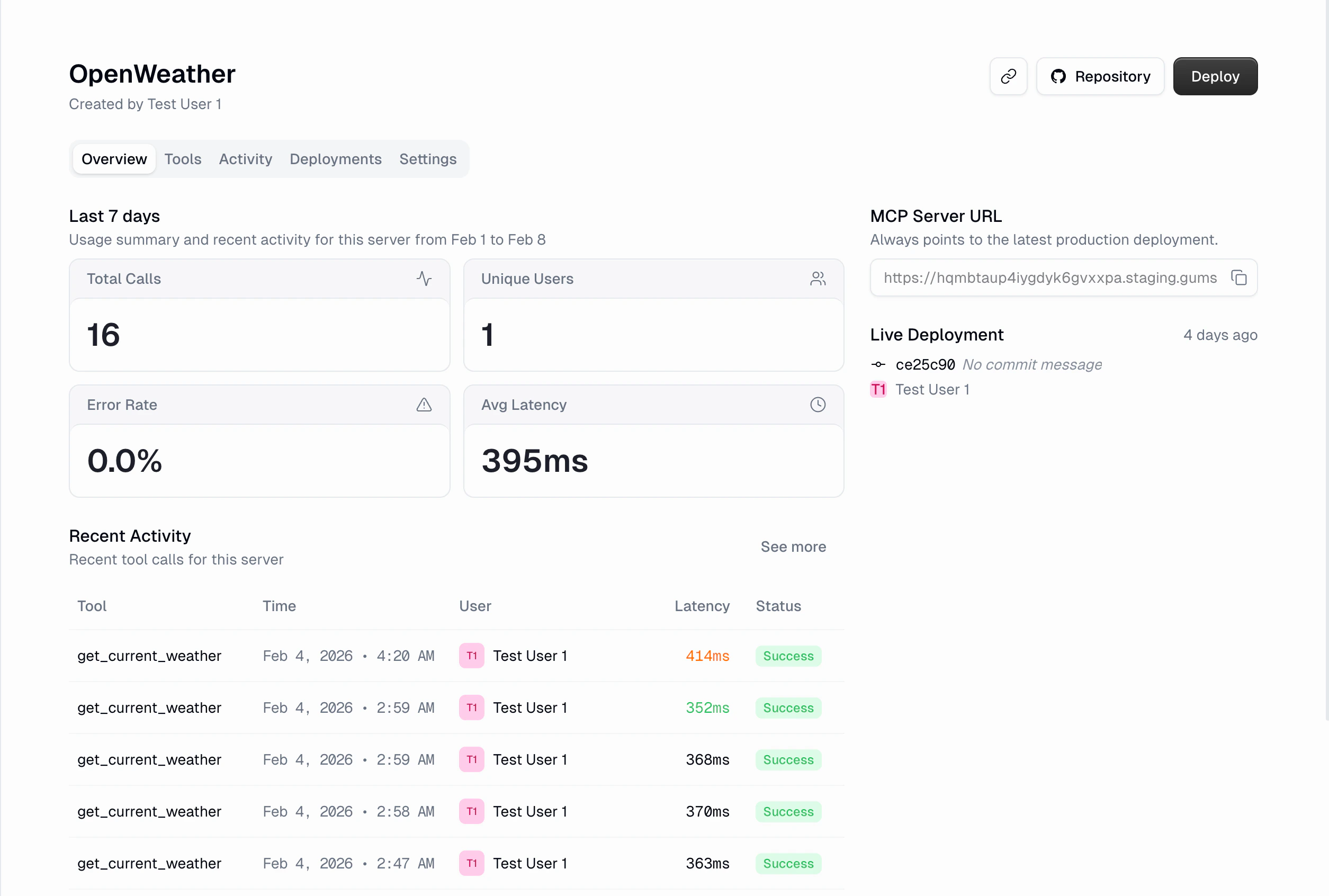
Every deployed server has a public MCP Server URL. You can find it in two places:- Server detail header: Click Copy Server URL on any internal MCP server
- Overview tab: The URL is displayed under the MCP Server URL section
Authentication
When an external MCP client connects to a Gumstack server, it goes through a standard OAuth 2.0 flow:1
Client discovers the OAuth server
The MCP client (Cursor, Claude, etc.) discovers Gumstack’s OAuth endpoints automatically via the
/.well-known/oauth-authorization-server discovery URL. No manual configuration needed.2
User logs in to Gumloop
The client redirects the user to Gumloop’s login and consent page in the browser. The user signs in with their Gumloop account and approves access.
3
Client receives a token
After approval, the client receives an OAuth access token (valid for 1 hour) and a refresh token (valid for 6 months). The client handles token refresh automatically.
4
All requests are authenticated
Every subsequent MCP request includes the token. The GumstackHost validates it on every call, identifying the user and their permission group.
Authorization header.
Connecting from Cursor
Add the server to your Cursor MCP configuration file (.cursor/mcp.json in your project root, or ~/.cursor/mcp.json for global access):
Connecting from Claude Desktop
Edit the Claude Desktop config file:- macOS
- Windows
Open
~/Library/Application Support/Claude/claude_desktop_config.json:Connecting from other MCP clients
Any client that supports SSE or Streamable HTTP transport can connect to a Gumstack server. The setup is the same:- Set the server URL to your Gumstack MCP Server URL (copied from the dashboard)
- If the client supports OAuth discovery, it will handle authentication automatically
- If not, include an Authorization header with a valid bearer token
What works across all clients
Because all the infrastructure is handled server-side by GumstackHost, every feature works identically regardless of which client makes the call:External client calls show up in the Activity dashboard just like Gumloop agent calls. You can filter by user to see all activity from a specific person, regardless of which client they used.
Centralized governance
This is one of the core selling points of Gumstack. When you deploy an MCP server through Gumstack, it doesn’t matter where it’s used. The server itself handles authentication, access control, and logging, so your IT team keeps full visibility and control.One dashboard for everything
Every tool call, whether it comes from a Gumloop agent, a developer’s Cursor session, or Claude Desktop, flows into the same Activity & Analytics dashboard. You see inputs, outputs, latency, errors, and which user made each call, all in one place.Instant access control
When an admin changes permission groups or tool access in Gumstack, it takes effect immediately across all clients. Restrict a tool, and no one can call it from any client. Move a user to a different group, and their access updates on the next request.Single kill switch
Disabling a server in Gumstack cuts off access from every client at once. No need to revoke tokens individually or update client configurations. The server rejects all requests until it’s re-enabled.Complete audit trails
Because every call is tied to a Gumloop user identity, you get per-user audit trails that span all clients. The Users page shows each person’s complete activity history, regardless of whether they used Gumloop, Cursor, or Claude.Credentials stay centralized
For servers that require additional credentials (OAuth or API Key), users manage everything from their Gumstack credentials page. The credentials are stored securely in Gumloop and used server-side. External clients never see or handle service credentials directly.Related docs
Using in Gumloop
Connect servers to Gumloop agents
Activity & Analytics
Monitor tool usage across all clients
Permission Groups
Control who can access which tools
GumstackHost Reference
Server-side infrastructure details