

This page focuses on internal Gumstack MCP servers in Gumloop agents. guMCP (pre-built) servers have their own connection flow and are not covered here.
Authentication
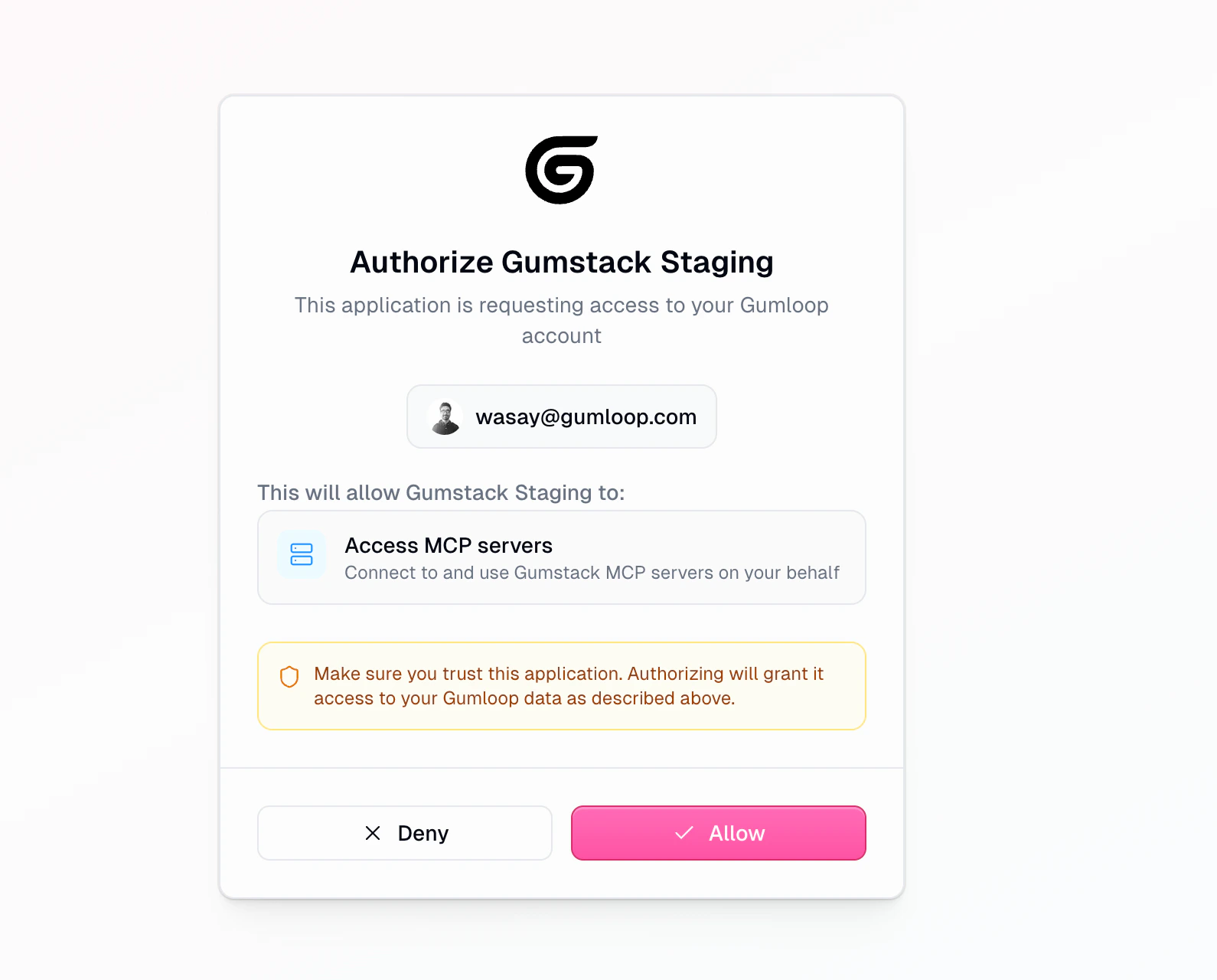
Using a Gumstack server requires two things:- Gumstack access: A one-time authorization that links the user’s Gumloop account to Gumstack. This is required for all Gumstack servers.
- Server-specific credentials: Depends on the server’s auth method. OAuth servers need a per-server OAuth flow. API Key servers need user-provided keys. No Auth servers skip this entirely.
Connecting to Gumstack
1
Open the MCP connection dialog
In a Gumloop agent, go to the Tools section and click Connect an app (MCP). The dialog has two tabs: Gumloop (managed integrations) and Custom (external MCP server URLs).Gumstack appears as a collapsible section within the Gumloop tab.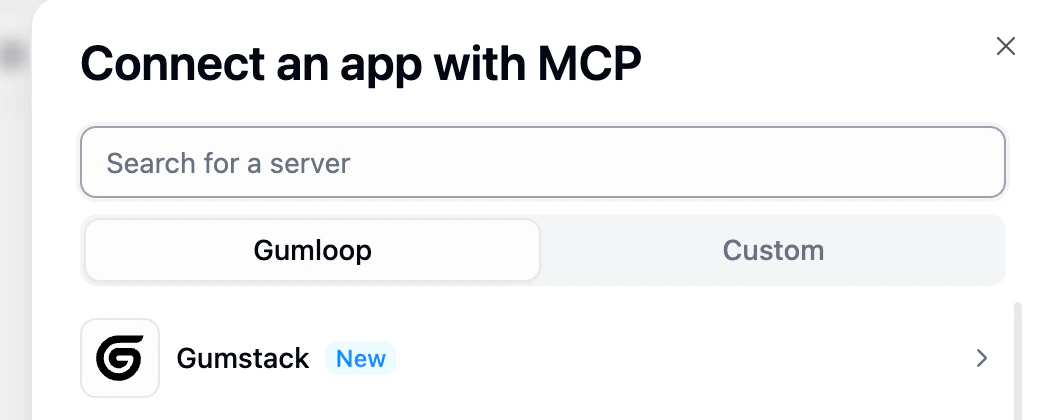
2
Authorize Gumstack (first time only)
Click Gumstack to expand it, then click Connect to Gumstack.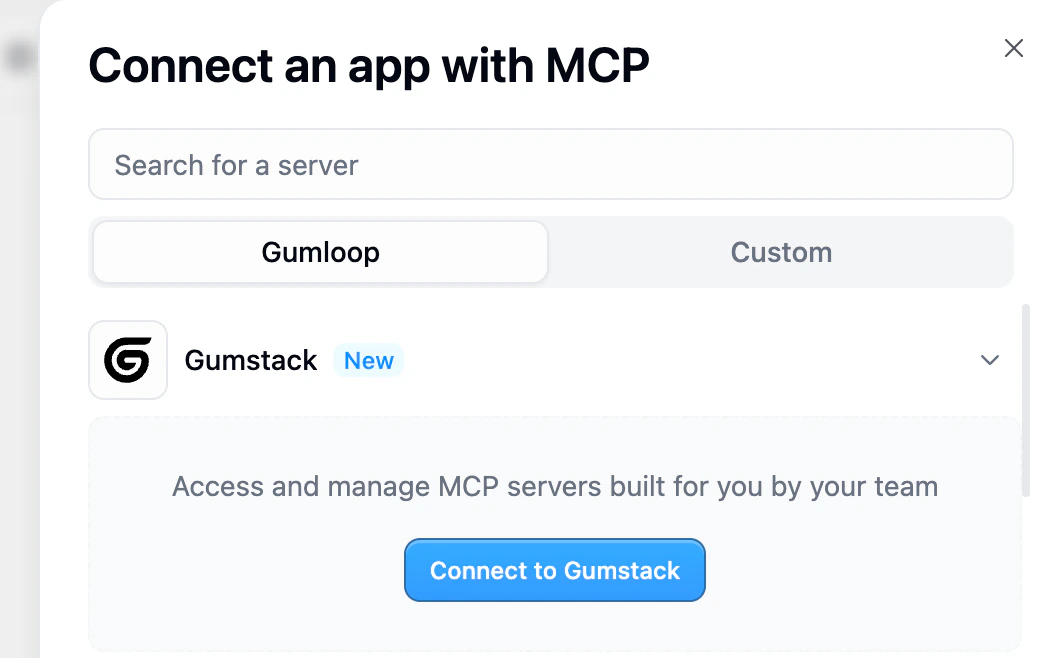
3
Select servers
After authorization, you’ll see all available Gumstack servers. Disabled servers, fully restricted servers, and servers you’ve already added are filtered out.Select the servers you want using the checkboxes. You can add multiple servers at once.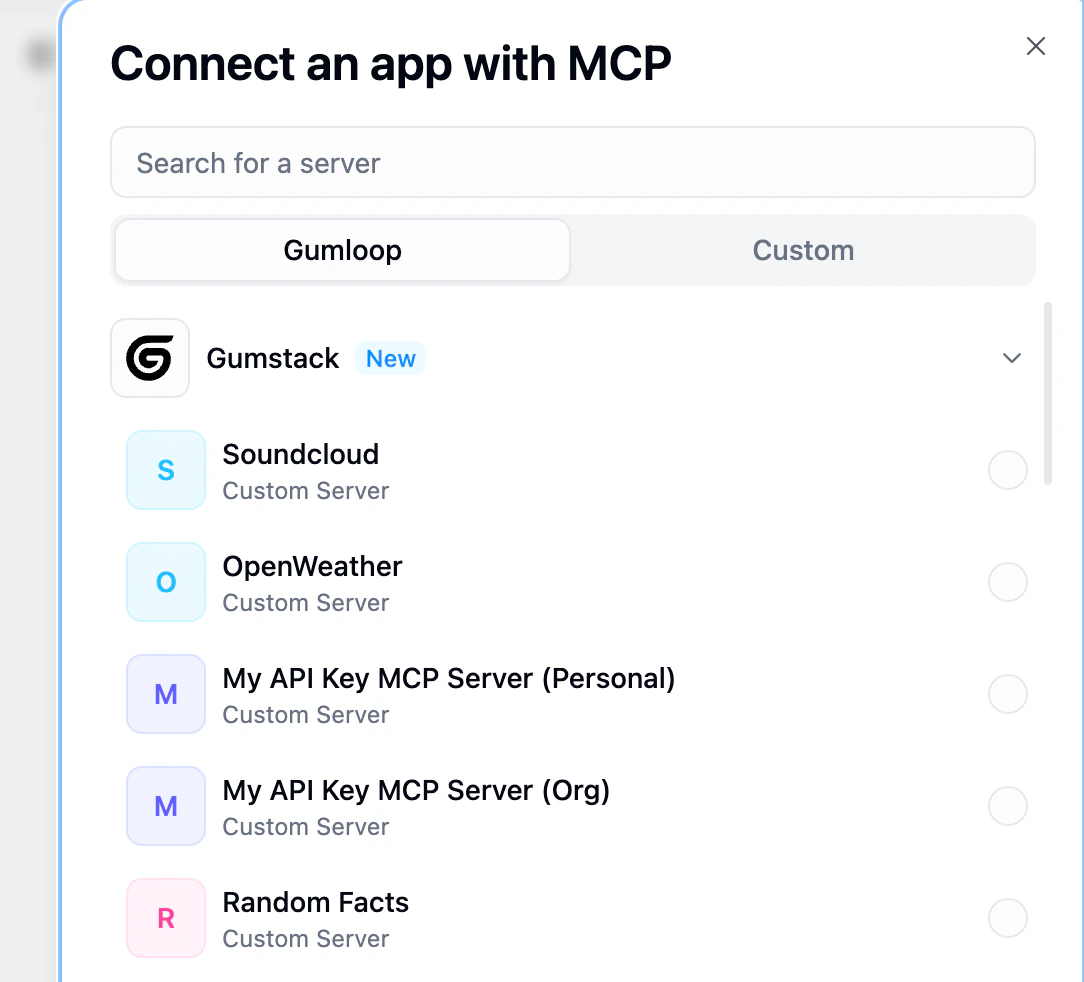
Server-specific credentials
After adding a server, what happens next depends on its authentication method.- No Authentication
- API Key / Credentials
- OAuth 2.0
No additional credentials needed. The server is immediately ready to use after connecting to Gumstack.These servers don’t appear on the credentials page since there’s nothing to configure.Best for: Internal services, shared utilities, or tools where access is managed entirely by permission groups.
The agent Tools section
Once servers are connected, they appear in the agent’s Tools section.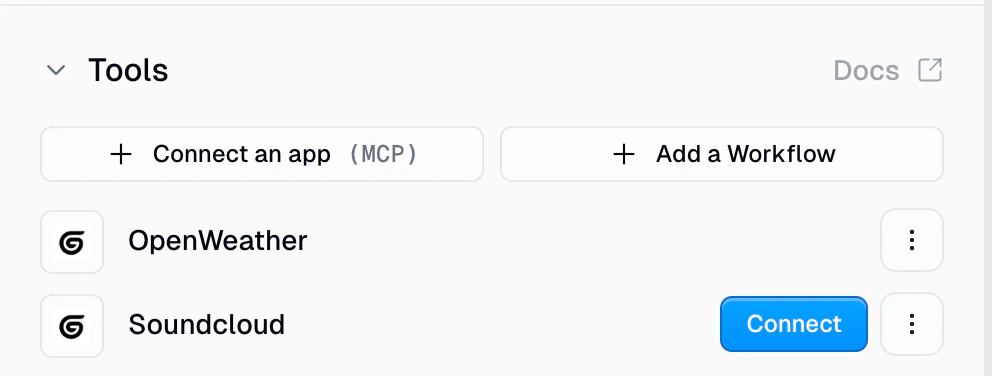
- Fully connected servers show their name and the Gumstack icon
- Servers needing credentials show a Connect button
- Each server has a three-dot menu for switching between Personal and Workspace credentials
Tool restrictions
When an admin restricts specific tools via permission groups, those tools are greyed out in the agent with a “Restricted” label and tooltip: ” is restricted by your admin.” Restricted tools can’t be toggled on and don’t count toward the selectable tool count. If called at runtime, the call is blocked withpermission_denied status.
Managing credentials
Users manage Gumstack credentials at Settings > Profile > Credentials under the Gumstack tab.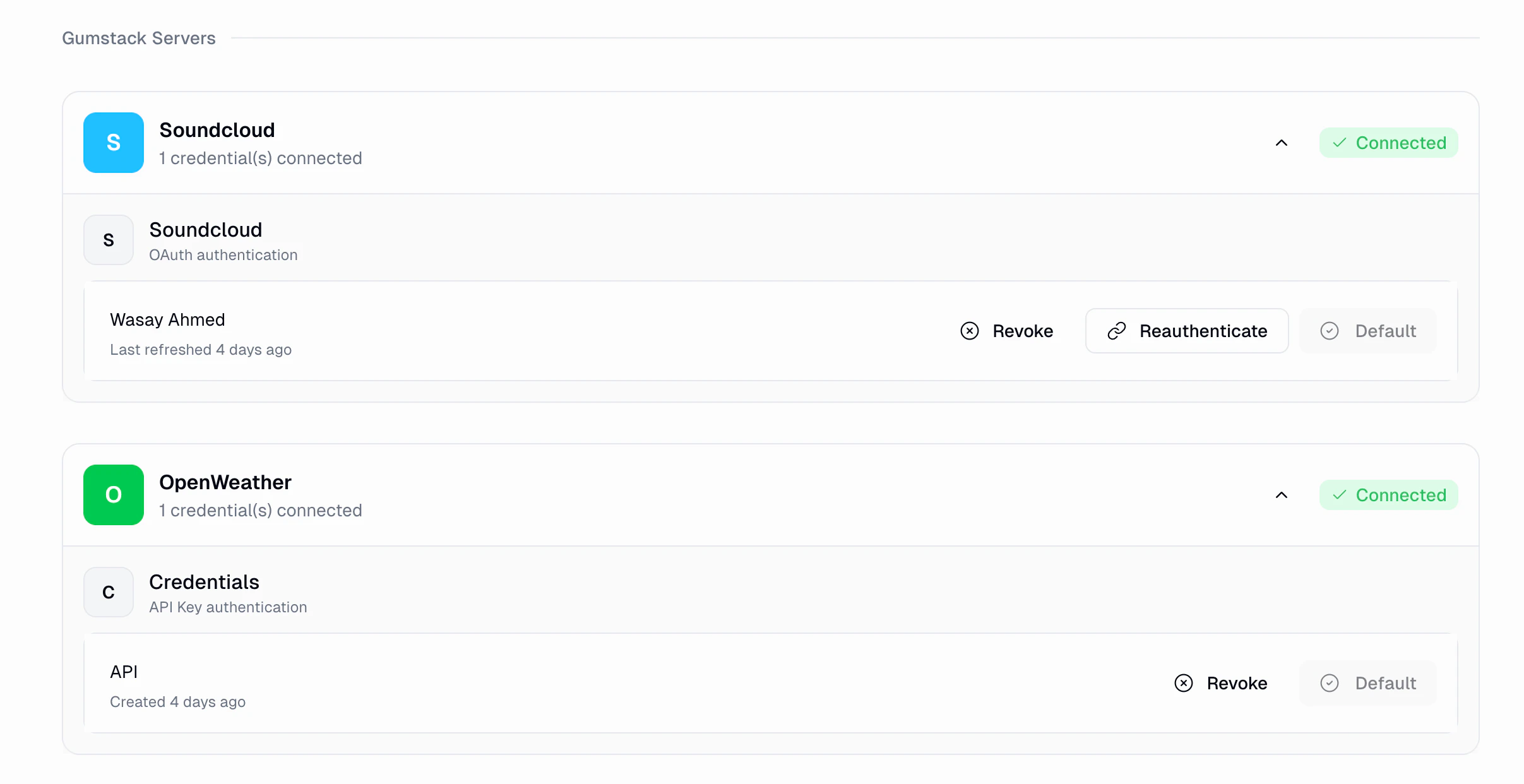
How admin settings affect end users
Permission groups and tool access
Blocked calls are logged with Permission Denied status in the Gumstack Activity dashboard.
Server states
Environment variable changes
Environment variables are injected at deployment time. Changes require a new deployment to take effect.Activity logging
Every tool call made through a Gumstack server is automatically logged in the Activity dashboard, regardless of auth type.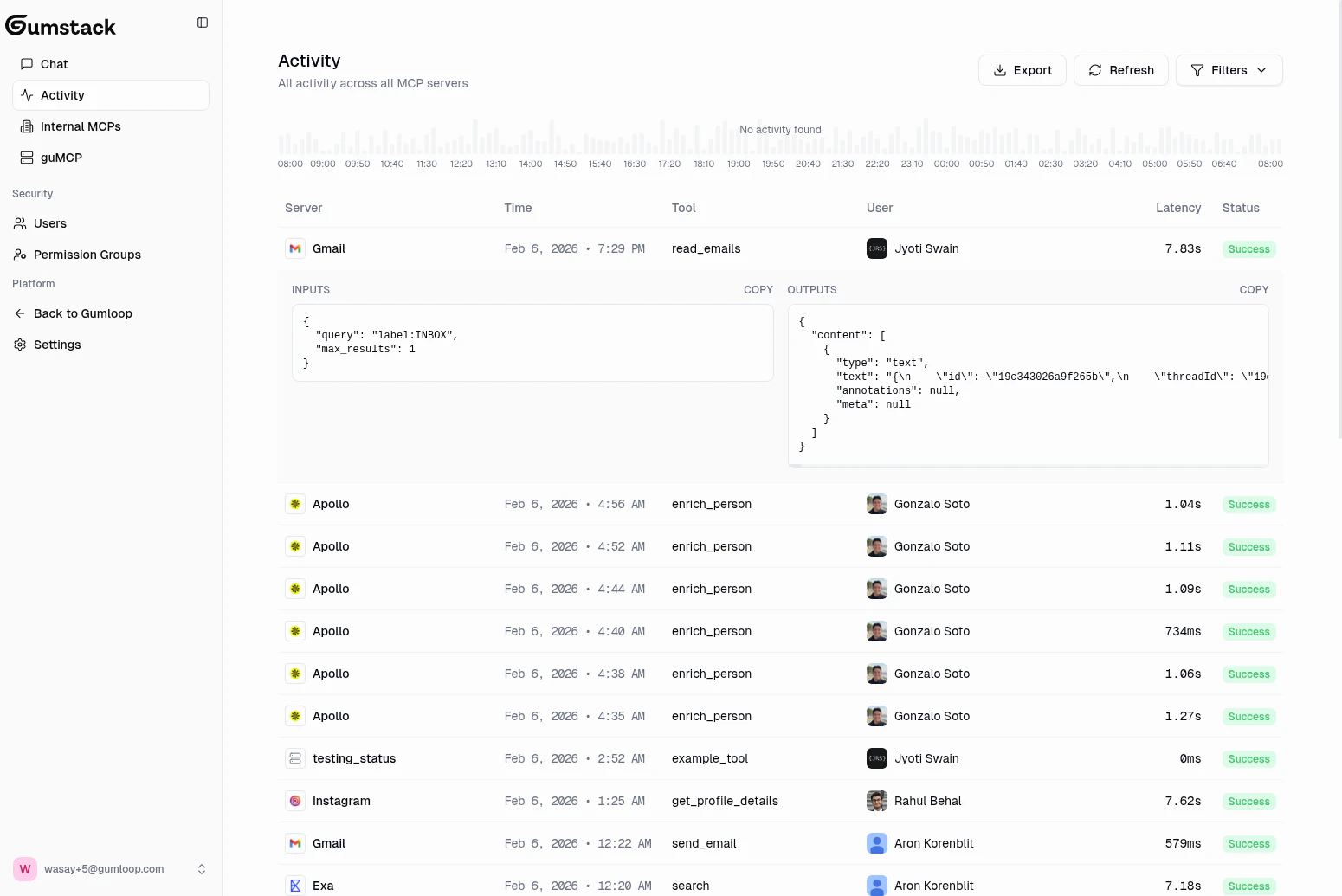
success, error, permission_denied, or timeout), and any error or blocked reason.
This data is visible in three places:
- Global Activity: All calls across all servers
- Server detail > Activity tab: Calls for a specific server
- User detail: All calls by a specific user
End-to-end example
1
Admin deploys a server
The IT admin creates an internal MCP server in Gumstack with OAuth authentication. The server exposes tools like
search_tracks and get_playlist.2
Admin configures access
The admin grants the “Engineering” group access to both tools, but restricts the “Marketing” group to only
search_tracks.3
User connects in their agent
An engineer clicks Connect an app (MCP), selects Gumstack, authorizes (first time only), and picks the server.
4
User authenticates with the server
Since it’s an OAuth server, the engineer clicks Connect in the Tools section and completes the OAuth flow.
5
User interacts with the agent
The engineer can call both
search_tracks and get_playlist. A marketing team member would see get_playlist greyed out with “Restricted”.6
Activity is logged
Every call (successful, failed, or denied) appears in Gumstack’s Activity dashboard with full details.
Best practices
Set up permissions before announcing the server
Set up permissions before announcing the server
Configure permission groups and the tool access matrix before telling users about a new server. This prevents confusion from permission denied errors on first use.
Test with a small group first
Test with a small group first
Create a “Beta Testers” permission group and grant them access. Verify the full flow works before expanding to broader groups.
Monitor activity after launch
Monitor activity after launch
Check the Activity dashboard for the first few days. Look for errors, high latency, or permission denials that suggest misconfiguration.
Choose the right auth method
Choose the right auth method
Use No Auth for internal utilities, API Key when each user has their own key, and OAuth for third-party integrations. OAuth provides the best user experience since token management is automatic.
Related docs
Quickstart
Build and deploy your first server
Permission Groups
Configure who can access which tools
Activity
Monitor tool usage in real-time
Using Servers Externally
Connect to Cursor, Claude, and other MCP clients