

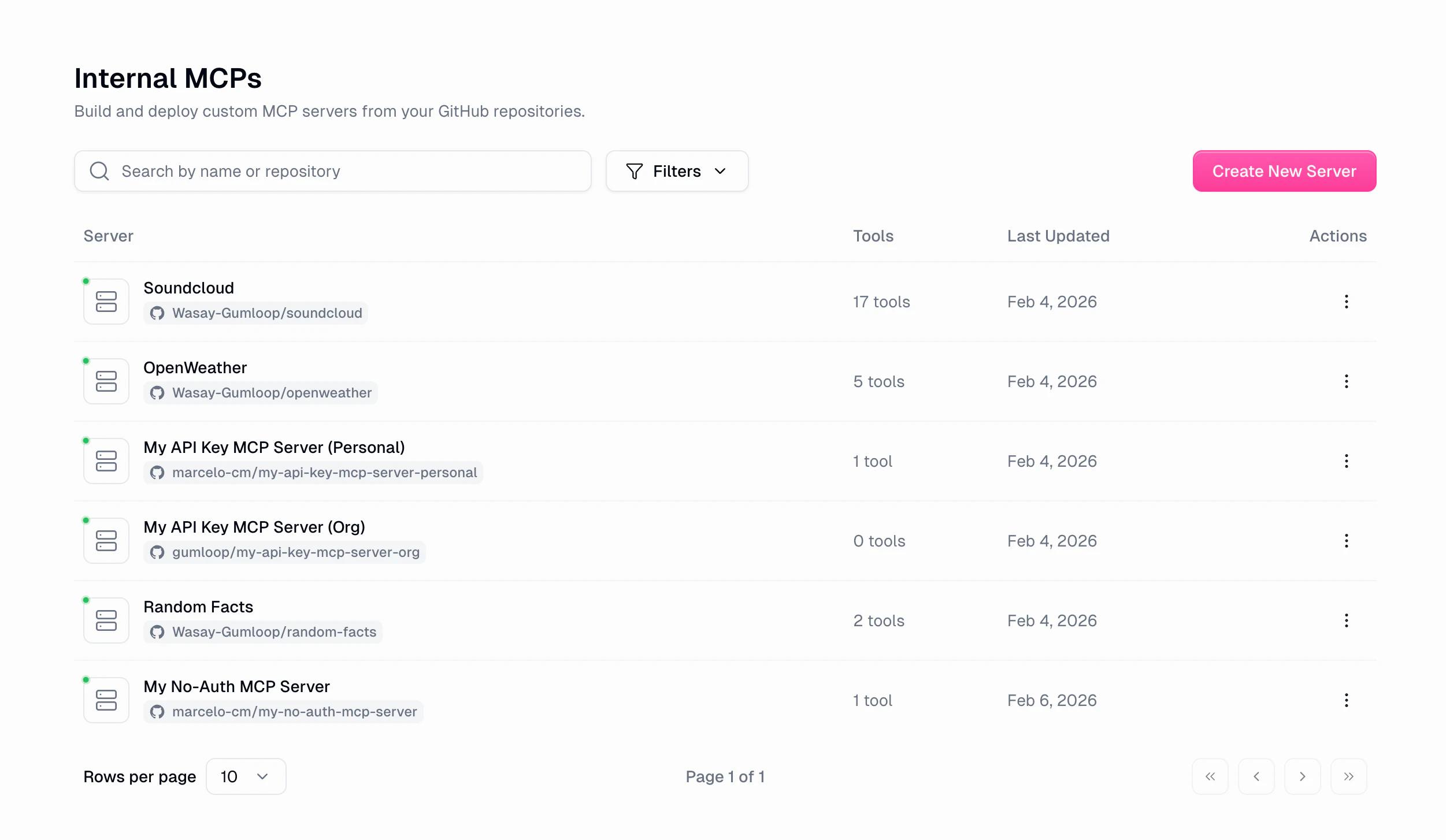
Server list
The Internal MCPs page shows all your custom servers in a table with status, creator, and last updated timestamp. Use Search to filter by name, toggle Show Deactivated to include disabled servers, or switch to My Servers Only to see just yours. Click Create New Server to start building a new server. See the Quickstart for a full walkthrough.Server detail
Click any server to open its detail page with 5 tabs: Overview, Tools, Activity, Deployments, and Settings. The header shows the server name, creator, a Copy Server URL button, link to the GitHub repository, and a Deploy button for manual deployments.If the GitHub App isn’t installed or doesn’t have access to the repo, you’ll see a warning banner at the top.
Overview tab
A quick snapshot of your server’s health and recent activity.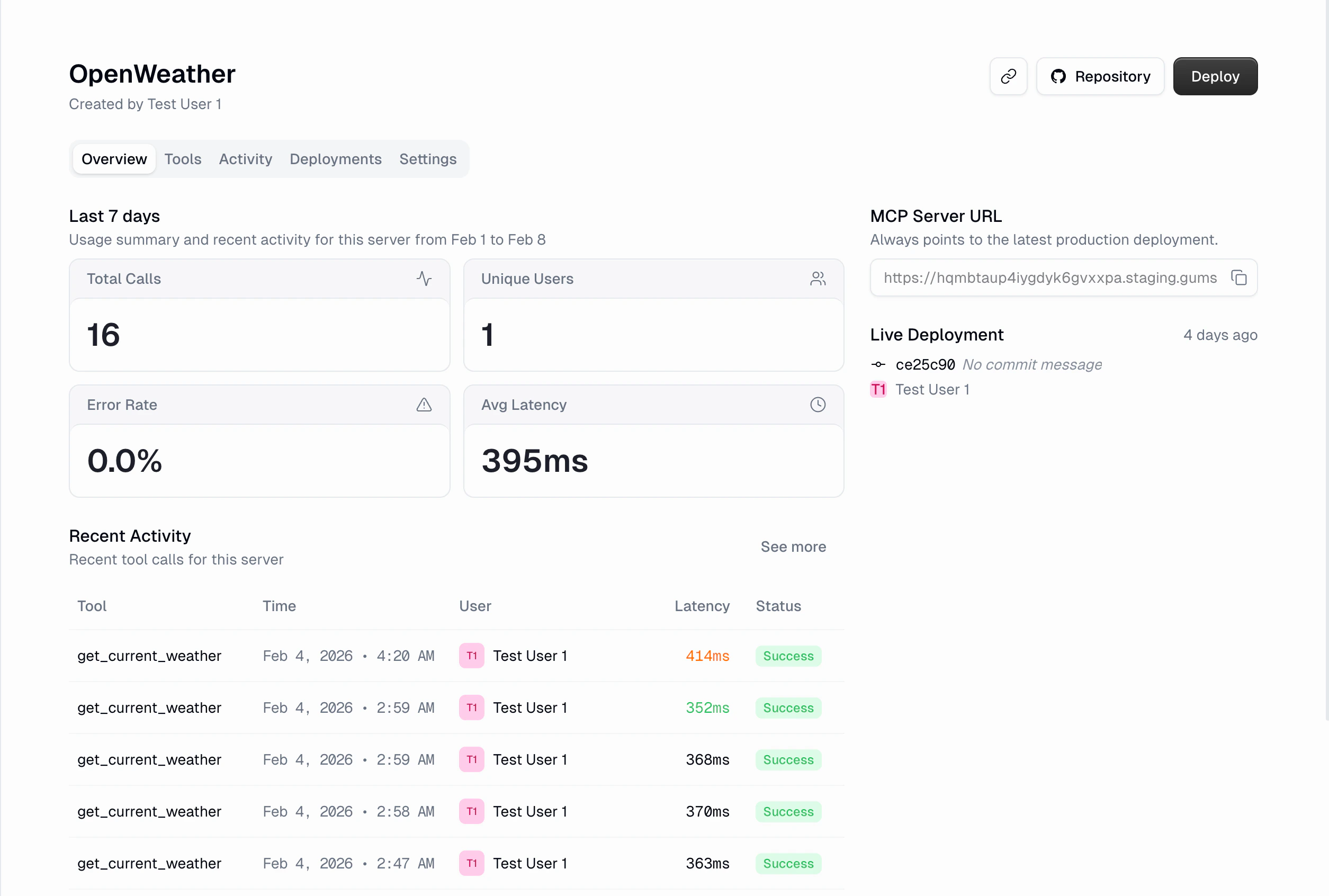
Below the stats: Recent activity (10 most recent tool calls with expandable rows), the MCP Server URL (SSE endpoint pointing to the latest production deployment), and the Deployment overview showing the currently live deployment and any in-progress builds.
Activity tab
Server-specific activity log showing all tool calls for this server. Works like the global Activity page with a few key differences: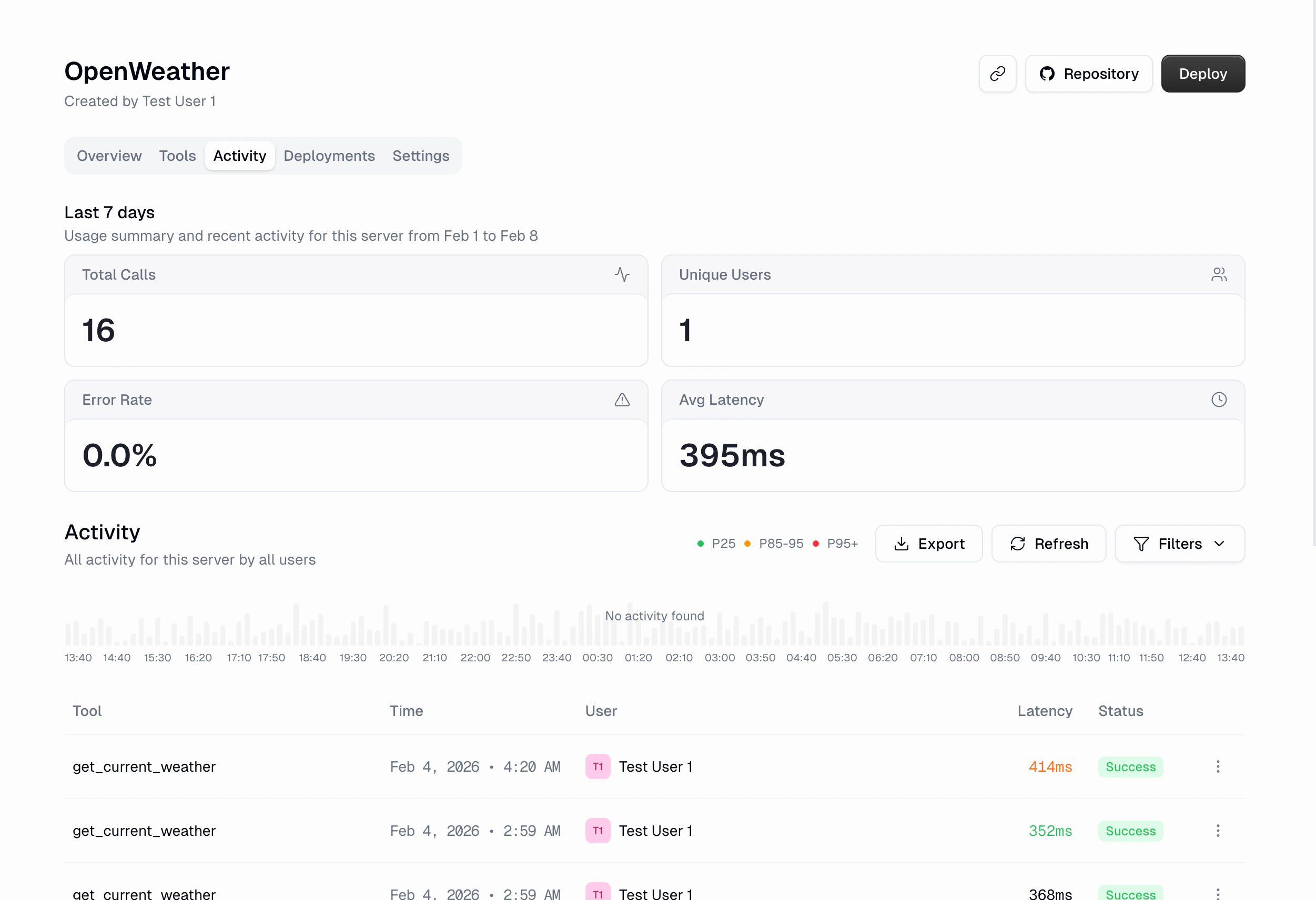
- 4 stat cards at the top: Total Calls, Unique Users, Error Rate, Avg Latency
- Tool filter instead of Server filter (already scoped to this server)
- Latency percentile indicators: P25 (green), P85-95 (yellow), P95+ (red)
- Histogram with status breakdown (hidden for ranges over 24 hours)
- Pagination: 10 calls per page
Deployments tab
Every push tomain triggers an automatic deployment if the GitHub App is installed. The deployments tab shows deployment history with status, commit SHA + message, author, and timestamp.
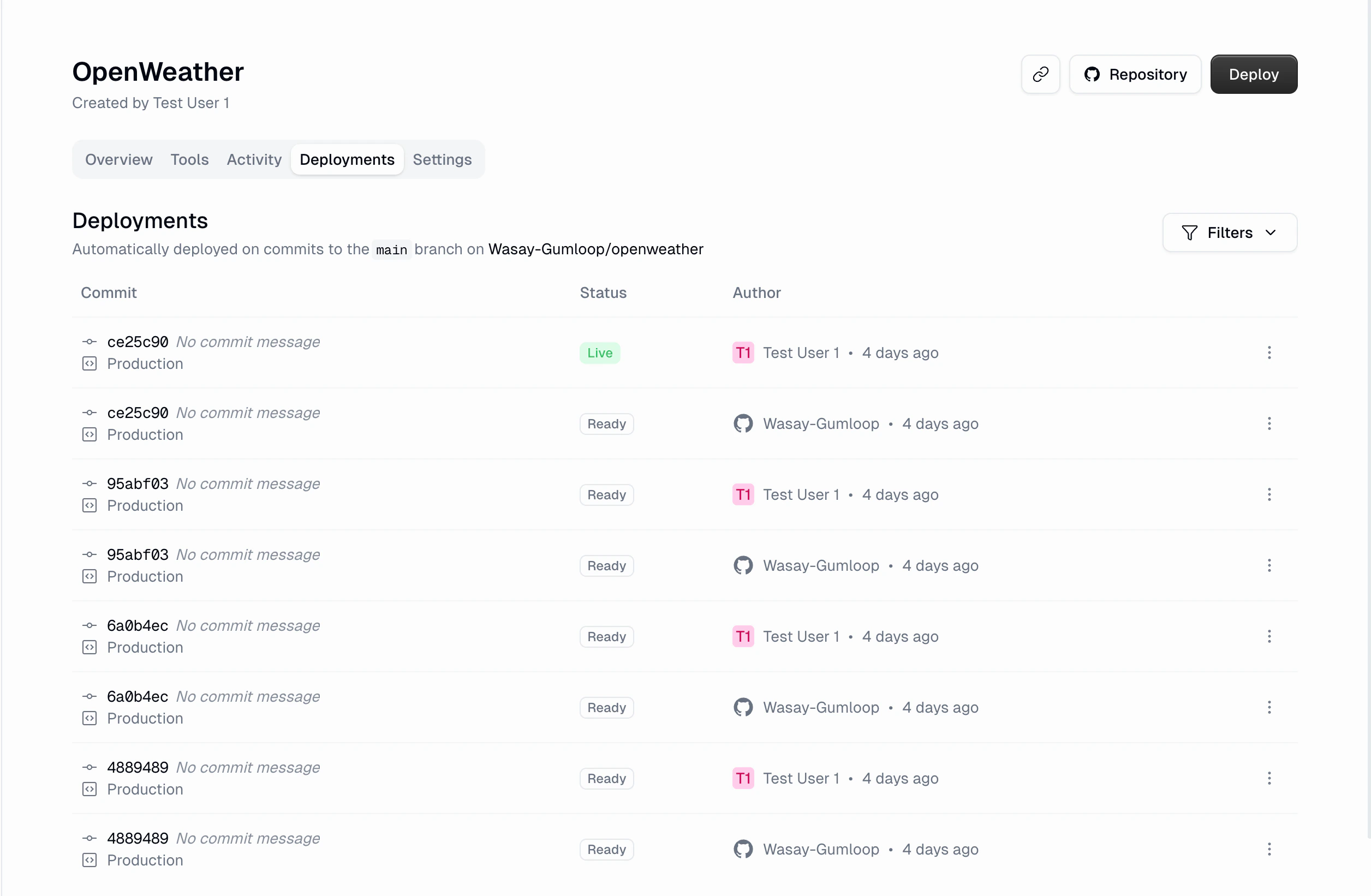
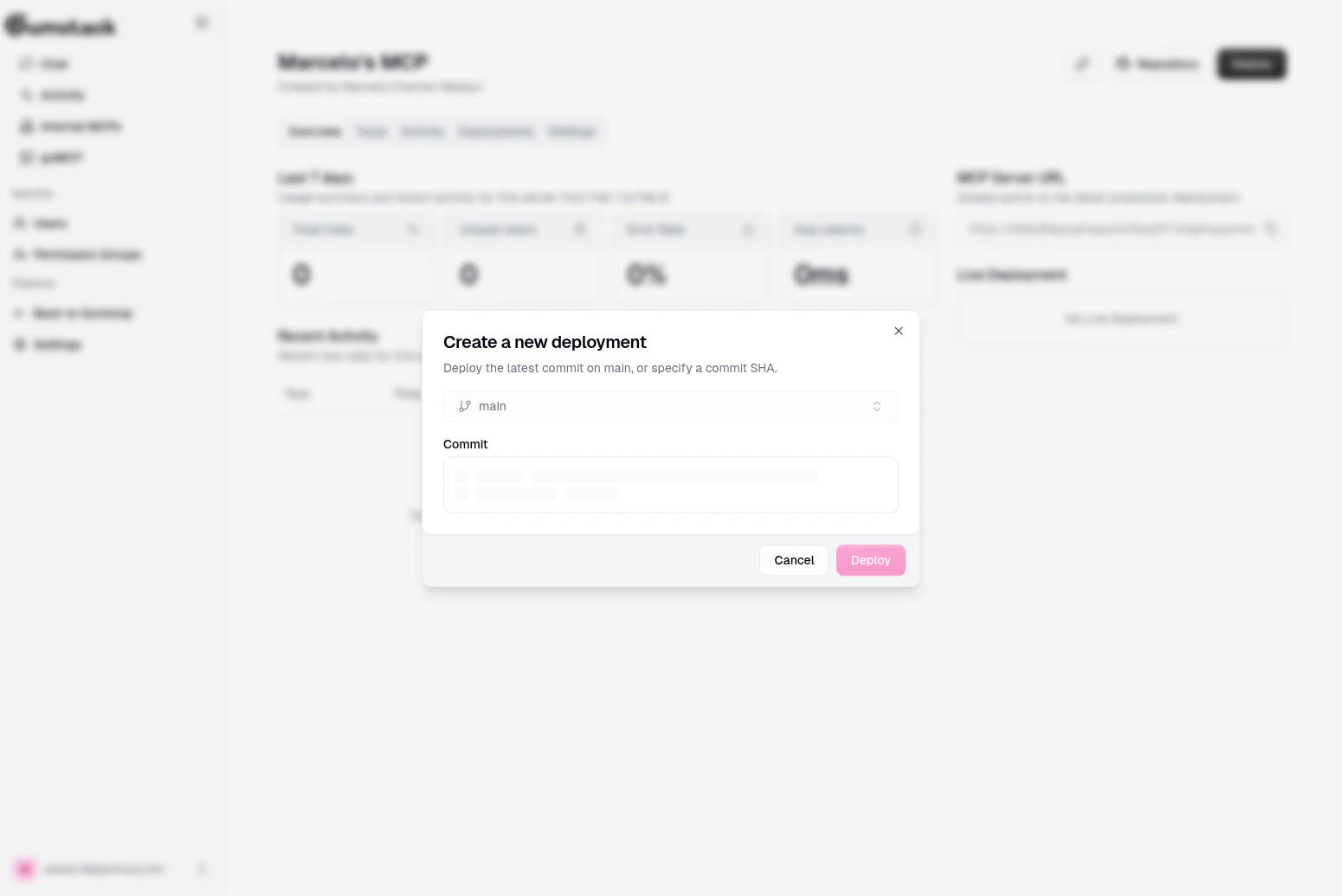
main), choose a commit (latest or search by SHA), review the details, and click Deploy.
Viewing logs: Click View Logs on any deployment to open the logs modal.
- Build Logs
- Runtime Logs
Shows the Docker build process: dependency installation, image creation, and push progress. Includes deployment status, commit SHA, and timestamp. If the build failed, the error is displayed prominently.Features: search, auto-scroll toggle, line numbers, ANSI color support.
Settings tab
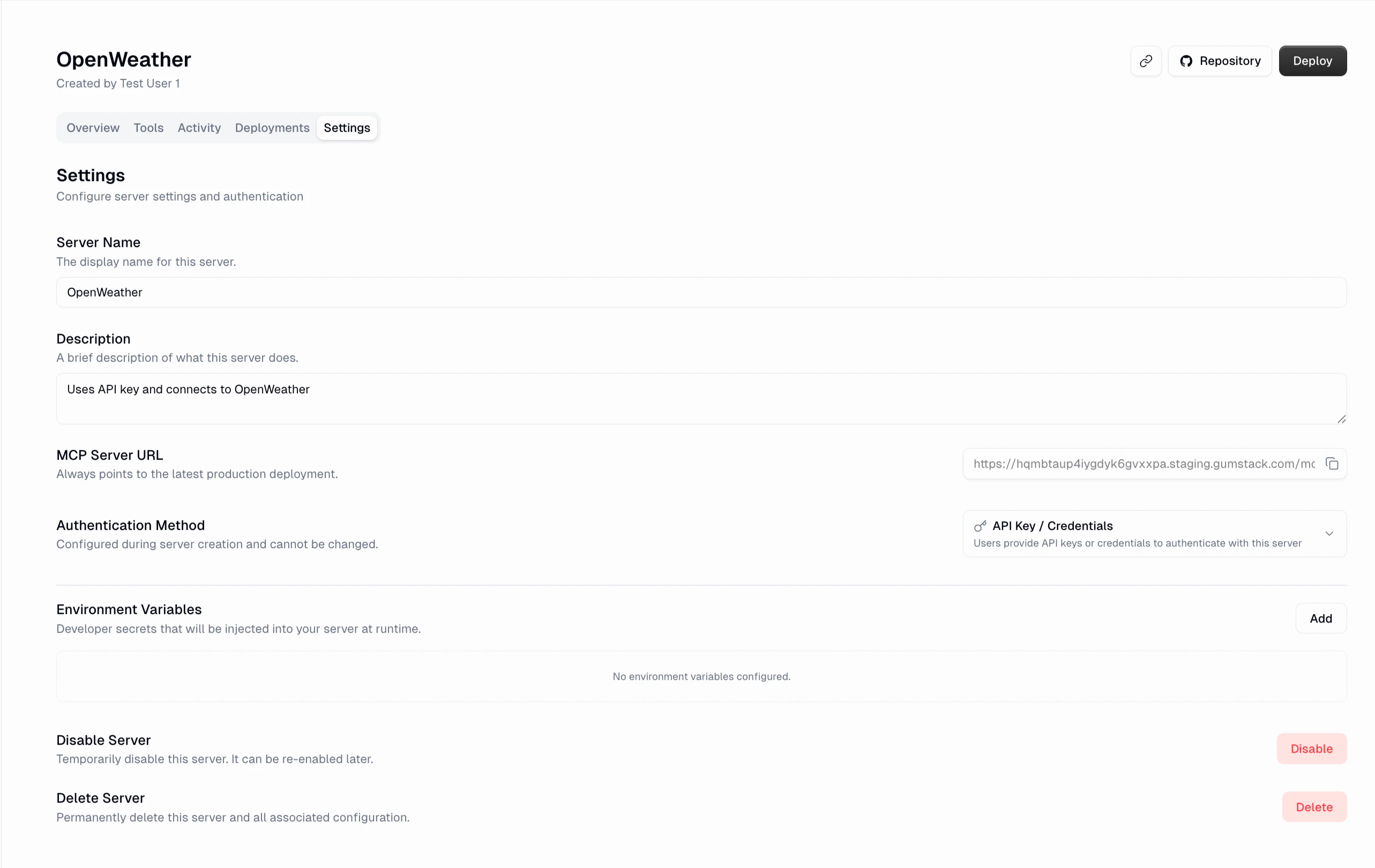
General
General
Edit the Server Name and Description. The MCP Server URL is read-only and always points to the latest production deployment.
Authentication
Authentication
Read-only display of the authentication method chosen at creation. Cannot be changed after creation. Options are: No Authentication, API Key / Credentials, or OAuth 2.0.
Environment Variables
Environment Variables
Manage key/value pairs securely injected into your server at runtime. Values are masked by default. Each variable supports Copy key, Edit, and Remove actions.
Danger Zone
Danger Zone
Disable Server: Temporarily takes the server offline. All endpoints return errors until re-enabled.Delete Server: Permanently removes the server configuration, environment variables, deployment history, and webhooks. Your GitHub repository is not deleted.
Creating a new server
For a full walkthrough, see the Quickstart. The creation wizard has three steps:- Basic Info: Server name, description, GitHub org, repository name, visibility
- Authentication & Environment: Auth method and environment variables
- Review: Summary of all settings with edit buttons per section
You need a GitHub connection configured before creating servers.
Related docs
Quickstart
Full walkthrough for creating your first server
guMCP Servers
Pre-built servers managed by Gumloop
Permission Groups
Control which groups can access which tools
Deploying
Push-to-deploy details and scaling