

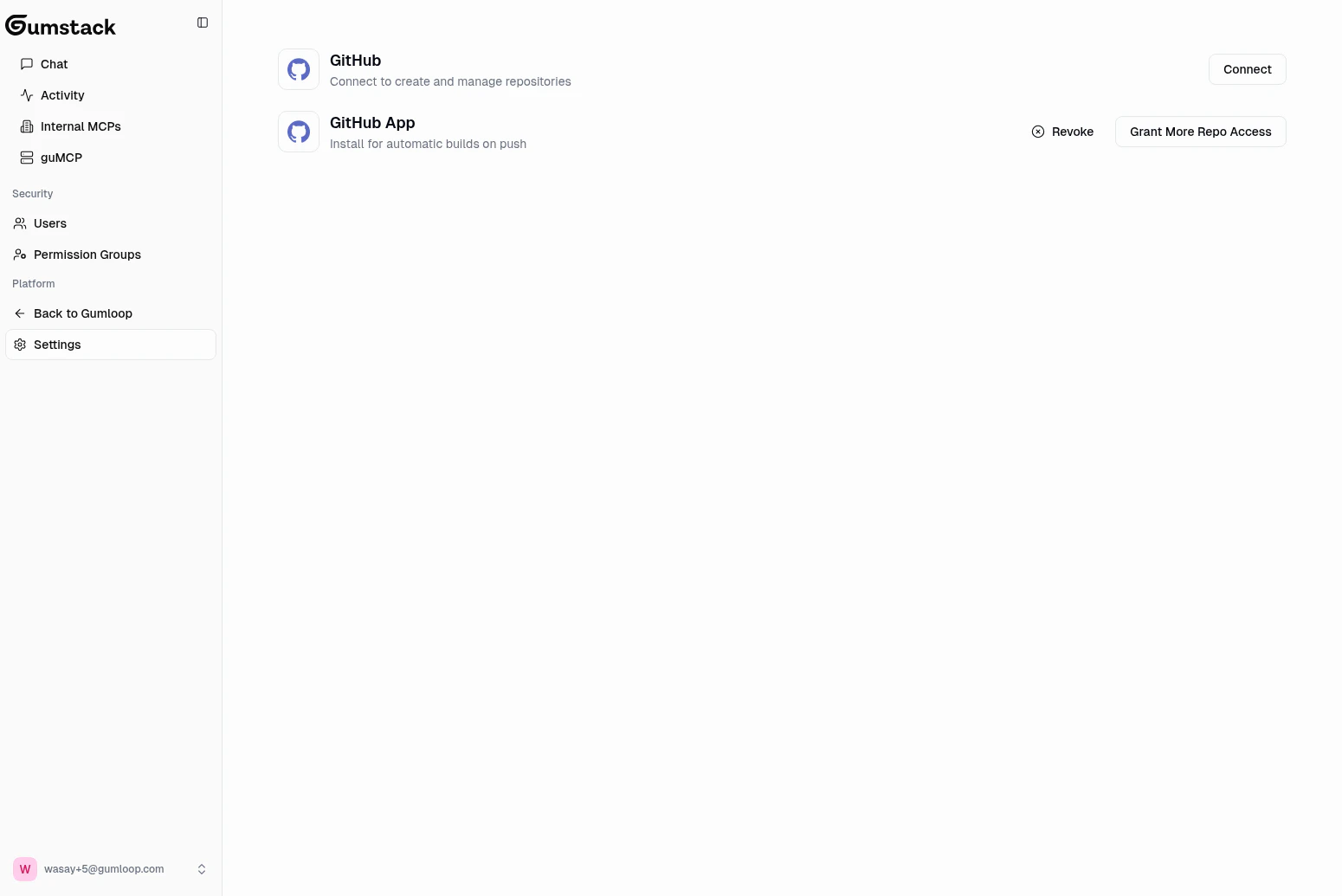
GitHub OAuth
Connect your personal GitHub account to Gumstack. This is used for creating repositories and managing server code.1
Navigate to Settings
Click Settings in the sidebar or go to
gumloop.com/gumstack/settings.2
Connect GitHub
Click Connect GitHub and authorize Gumstack to access your GitHub account.
3
Select organization
Choose which GitHub organization Gumstack should use for creating server repositories.
What GitHub OAuth enables
- Creating repositories: When you create a new internal server, Gumstack creates a GitHub repo in your connected org
- Browsing organizations: Gumstack reads your GitHub orgs to populate the org selector during server creation
- Repository access: Gumstack can link to and manage the repos it creates
GitHub App
The Gumloop GitHub App provides organization-level CI/CD for automatic builds and deployments. When installed, every push tomain on a server repository triggers an automatic build and deployment.
Installing the GitHub App
1
Click Install GitHub App
On the Settings page, click the Install GitHub App button under the GitHub App section.
2
Select repositories
Choose which repositories the app should have access to. You can grant access to all repos or select specific ones.
3
Confirm installation
Complete the GitHub installation flow. The app status will update to “Installed” on the Settings page.
Managing the GitHub App
After installation, you can:- Grant access to more repositories as you create new servers. When a new server is created, you may need to update the app’s repository access.
- Revoke the app entirely using the revoke button (requires confirmation)
What each integration does
Both integrations are needed for the full workflow. GitHub OAuth lets you create server repositories, and the GitHub App enables automatic deployments when you push code.
When do you need GitHub?
If you only plan to use guMCP servers and manage security settings, you don’t need to connect GitHub at all.
Troubleshooting
GitHub OAuth shows 'Not Connected'
GitHub OAuth shows 'Not Connected'
Click Connect GitHub and complete the authorization flow. Make sure you’re authorizing the correct GitHub account that has access to your organization.
GitHub App not detecting pushes
GitHub App not detecting pushes
Check that the GitHub App has access to the specific repository. Go to your GitHub organization’s settings, find the Gumloop app installation, and ensure the repo is included.
Can't see my GitHub organization
Can't see my GitHub organization
Your GitHub account must be a member (or owner) of the organization. Try reconnecting GitHub OAuth to refresh the organization list.
Related docs
Internal MCP Servers
Create and manage your custom servers
Quickstart
Deploy your first server after connecting GitHub