

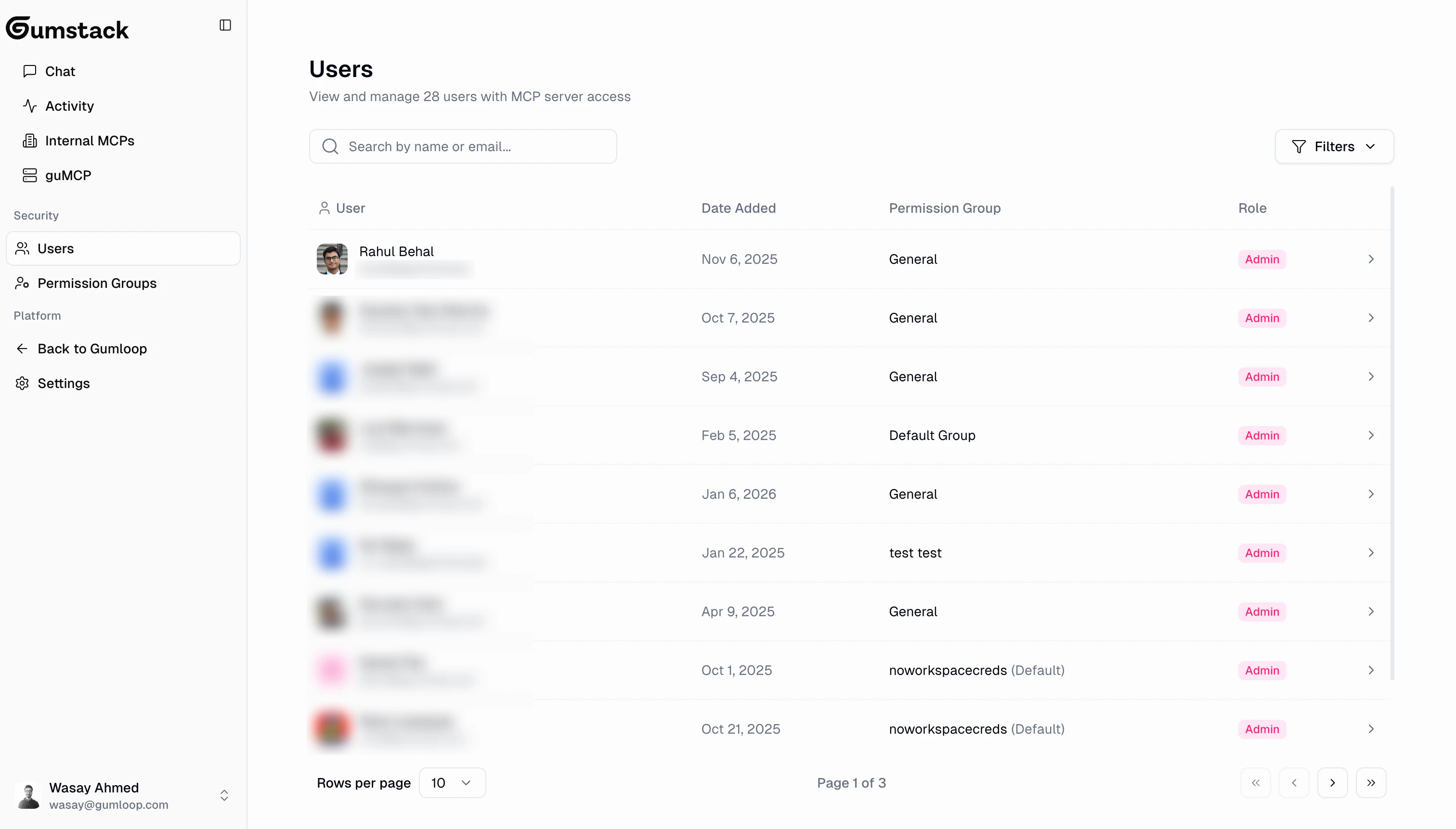
Users table
Pagination: 10 users per page.
Filtering
Roles
Only Admin and Gumstack Admin roles can access the Gumstack dashboard. Members and Managers can still use MCP tools through Gumloop workflows, subject to their permission group’s tool access settings.
Role changes and user invitations are managed in the main Gumloop organization settings, not from the Gumstack users page.
User detail
Click any user to view their profile and complete activity log.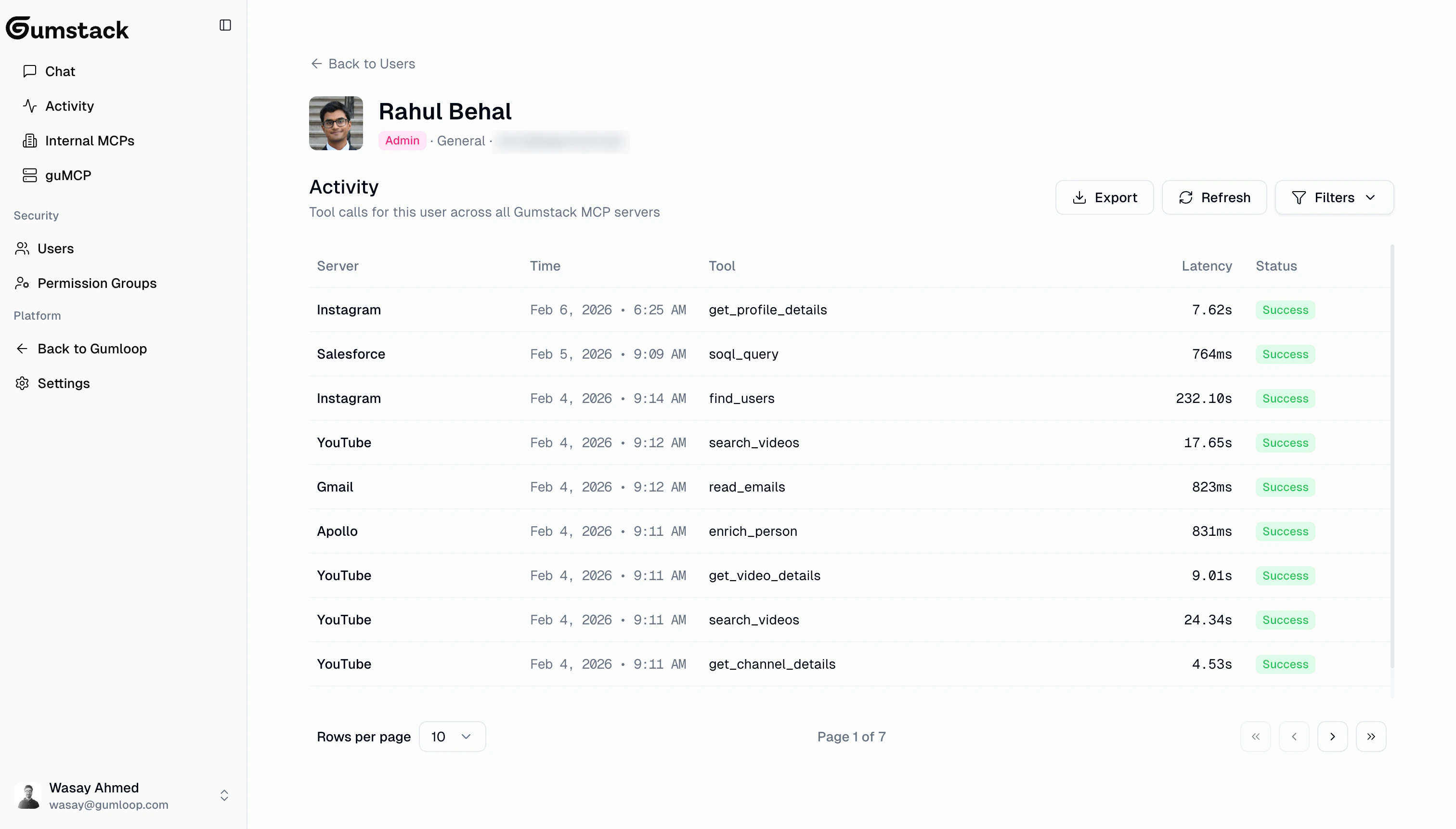
- Expand rows to see full input/output JSON for each call
- Filter by status, tool, and date range
- Export to CSV (filename:
{user-name}-activity-{date}.csv)
Group membership
Users are assigned to permission groups which control their tool-level access. Each user belongs to one group at a time. Group membership is managed from the Permission Groups page. Click into a group and use Add Member to assign a user, or use the dropdown on a member row to remove them.Related docs
Permission Groups
Create and manage groups for tool access control
Activity & Analytics
Monitor tool usage across your organization