

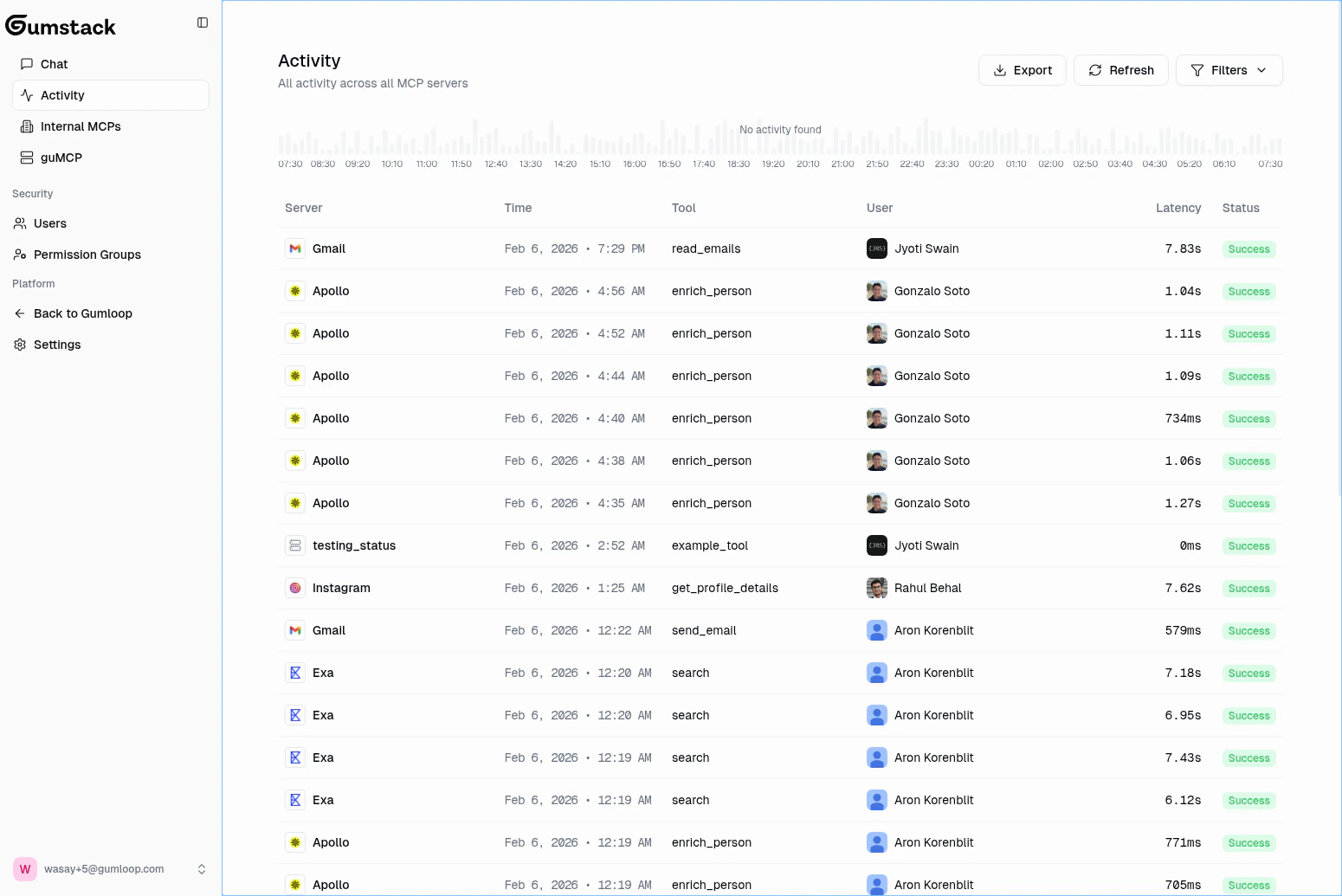
Activity histogram
The top of the page shows a stacked bar chart of tool call volume over time, color-coded by status:
Hover over any bar to see the exact time range and status breakdown. The histogram is visible when viewing a date range of 24 hours or less.
Activity table
The table below the histogram lists every tool call with the following columns:
Pagination is 30 items per page (server-side).
Expanded row details
Click any row to expand it and see the full input and output of the tool call.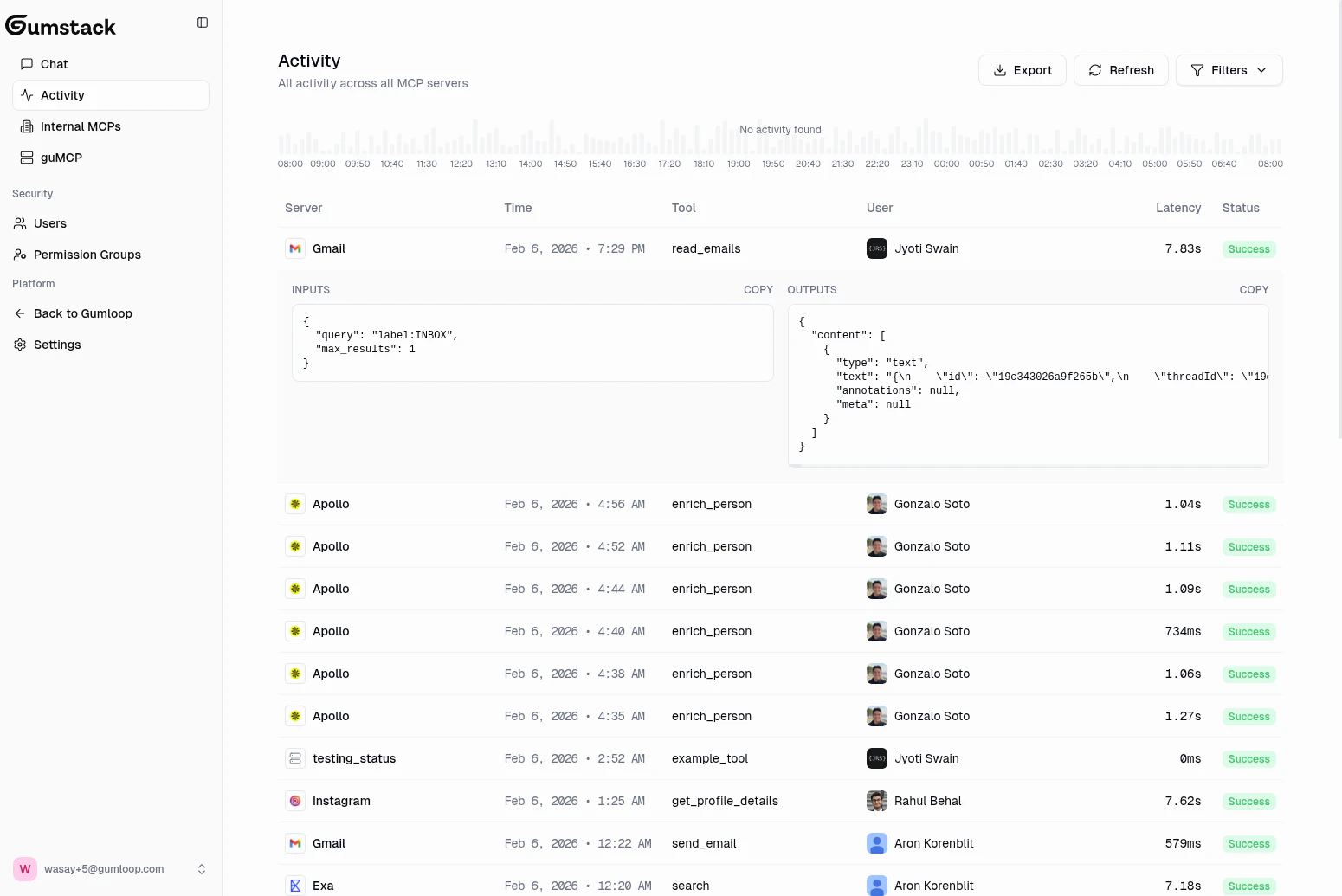
- Inputs (left panel): The complete parameters passed to the tool, displayed as formatted JSON with a Copy button
- Outputs (right panel): The complete response returned by the tool, also formatted JSON with a Copy button
- Error details: If the call failed, the output panel shows the error in a red-highlighted box
Filtering
Click the Filters button to open the filter popover. The button shows a badge with the count of active filters.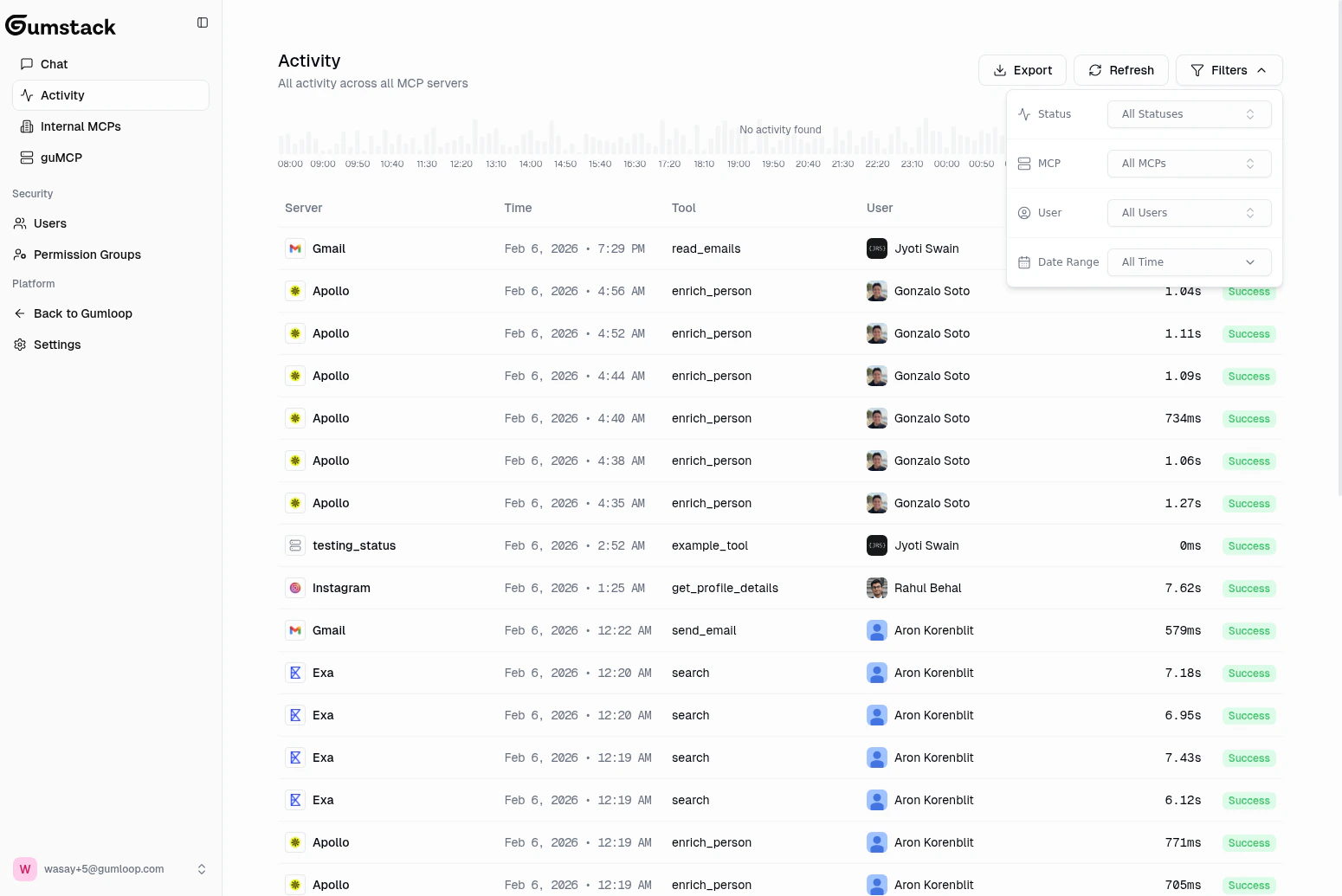
Click Clear Filters to reset all filters at once. Changing any filter resets pagination to page 1.
Export to CSV
Click the Export button to download the current view as a CSV file. The export includes: Status, Time (ISO format), Tool, User, Latency (ms), Latency Percentile, and Error. Filename follows the patternactivity-{date}.csv.
Per-server and per-user activity
The same activity interface appears in two other places, scoped to specific contexts:- Server activity
- User activity
Found on the Internal servers Activity tab. Includes stat cards at the top (Total Calls, Unique Users, Error Rate, Avg Latency), a Tool filter instead of Server filter, and latency percentile color indicators. Paginated at 10 items per page.
Related docs
Internal MCP Servers
View per-server activity and tool details
Users
View per-user activity history
Permission Groups
Understand permission denied entries
Chat
Ask the AI about activity trends